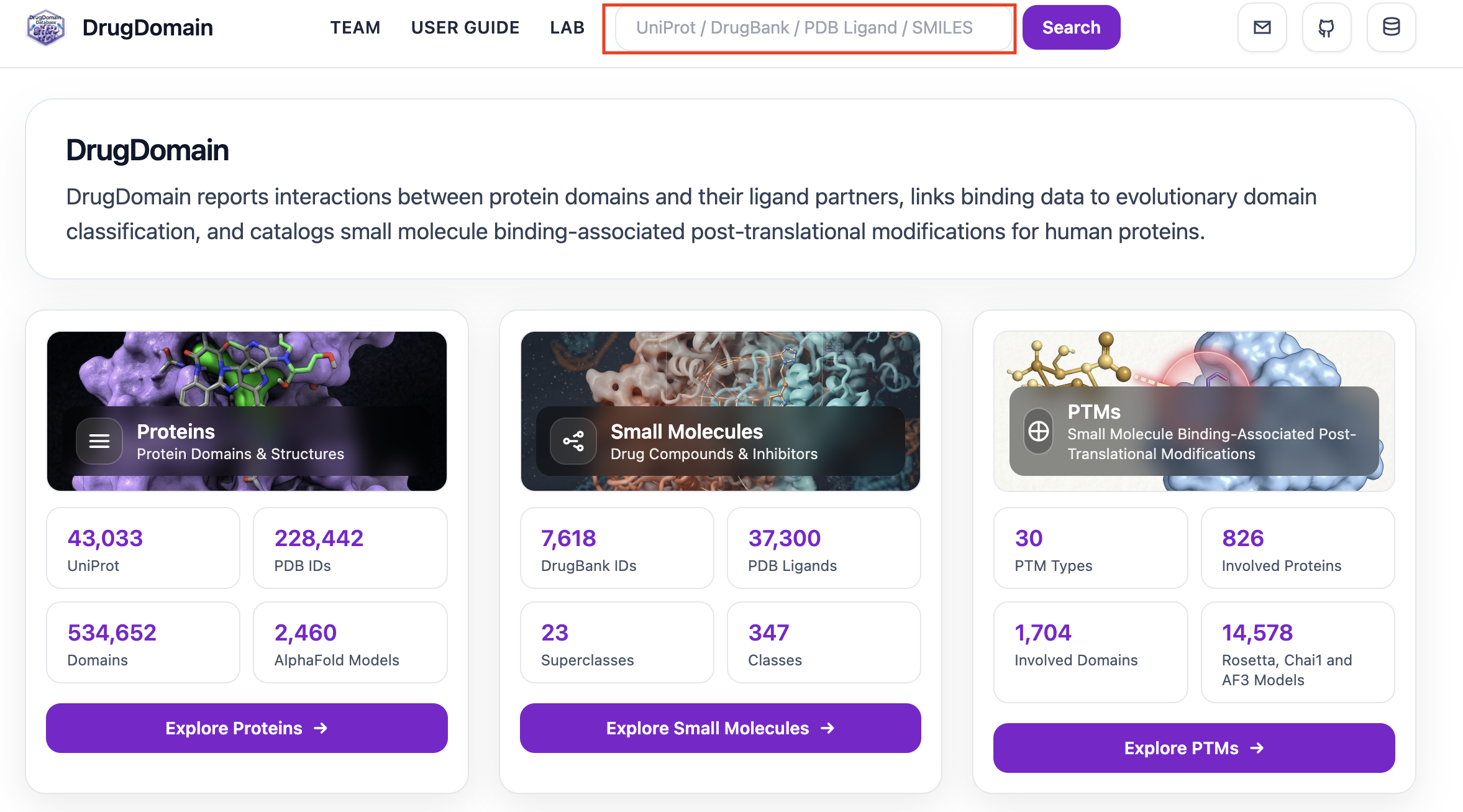
Welcome to the DrugDomain website. DrugDomain is organized into three main modules: Proteins, Small Molecules, and PTMs. You can use the navigation search bar to explore the database by entering different types of identifiers, including a UniProt accession (e.g., P15056), a PDB ligand code (e.g., BAX), a DrugBank ID (e.g., DB00398), or a SMILES string (e.g., c1nc2c(n1C3C(C(C(O3)COP(=O)(O)OP(=O)(O)O)O)O)N=C(NC2=O)N). Based on your query, the system automatically directs you to the appropriate module: UniProt searches open in the Proteins module, DrugBank IDs and PDB ligand codes open in the Small Molecules module, and SMILES queries open a page specific to the selected molecule.
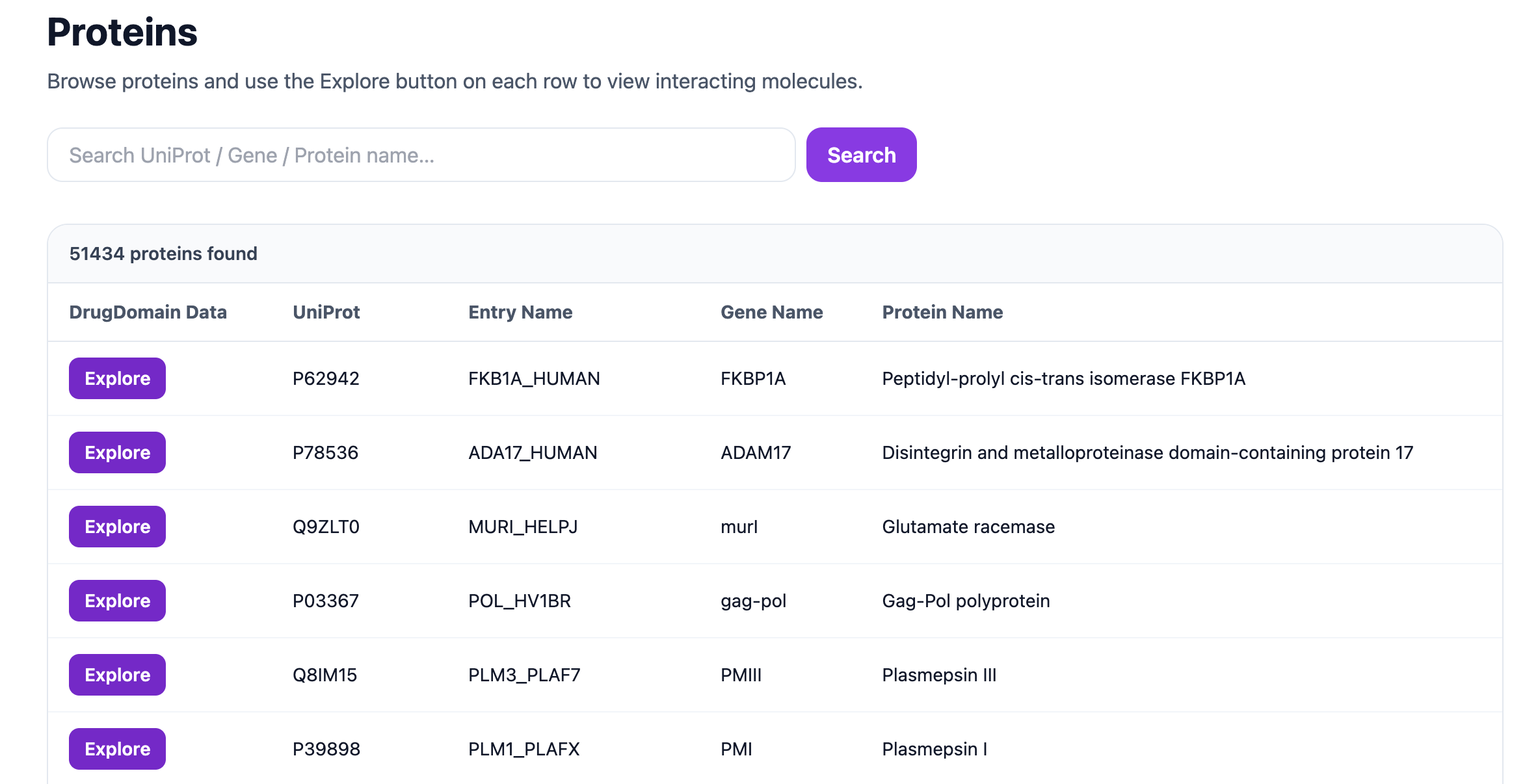
After clicking Explore Proteins, you will see the list of available proteins. Each record includes the UniProt accession, Entry Name, Gene Name, and Protein Name. The search bar at the top allows you to search by UniProt accession, Gene Name, or Protein Name, for example P62942, ADAM17, or Glutamate racemase.
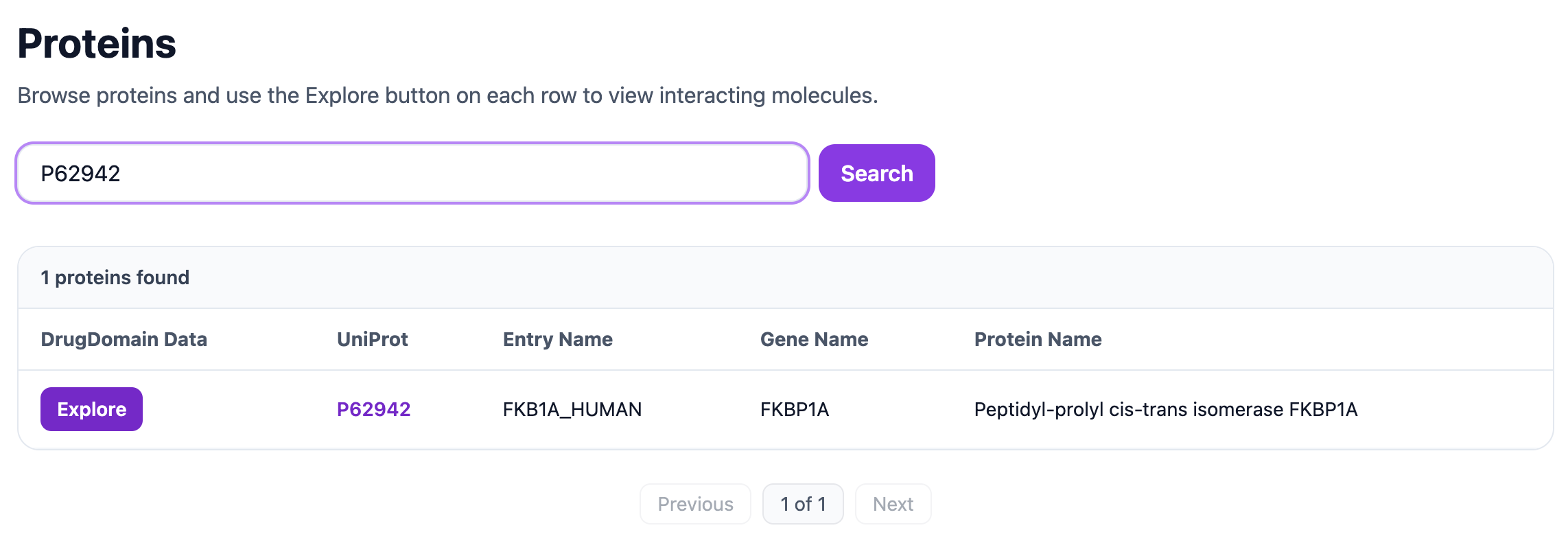
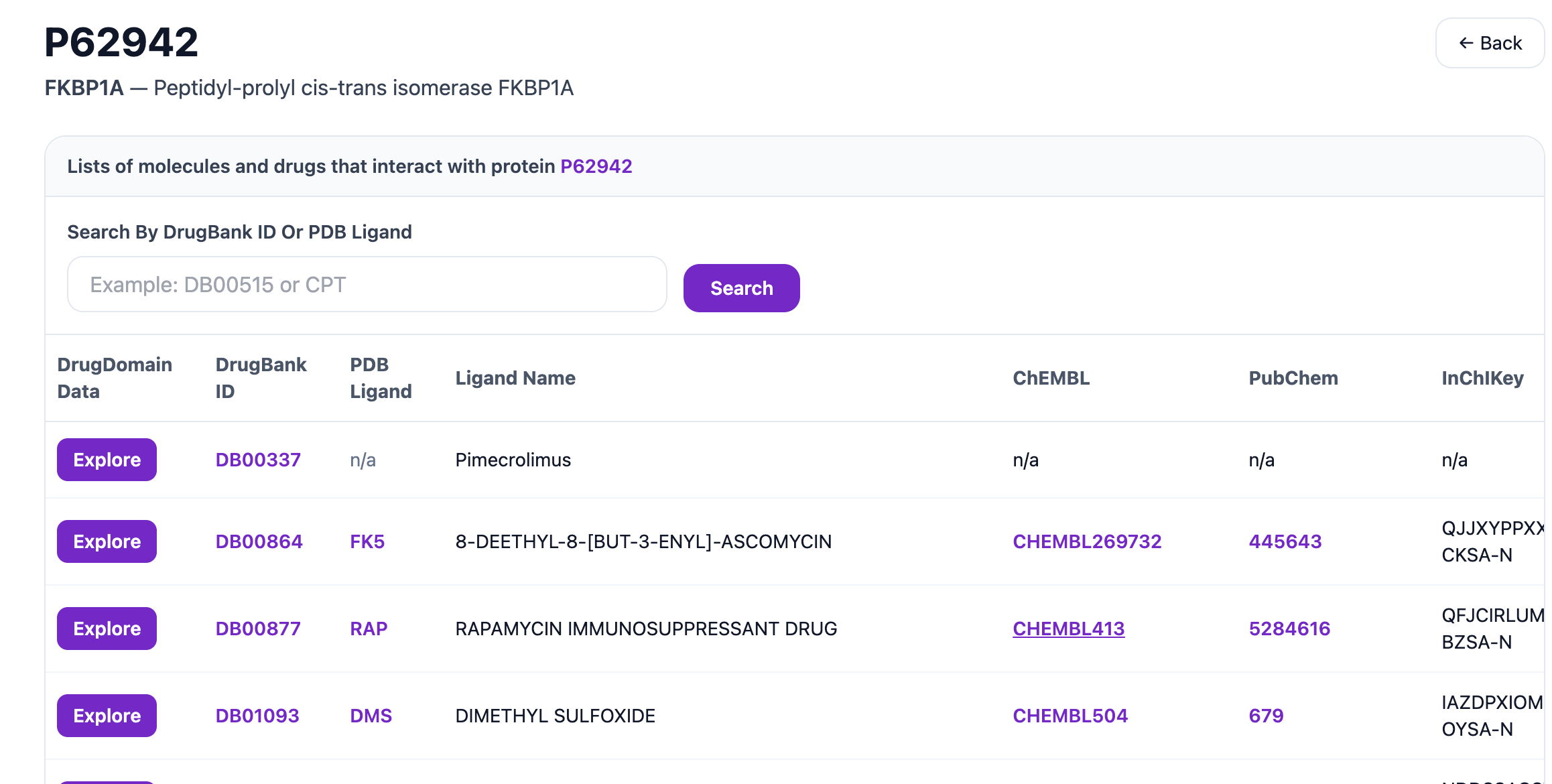
The example below shows the result for UniProt P62942. Clicking Explore opens the list of molecules associated with this protein.
This page displays the DrugBank ID, PDB Ligand, Ligand Name, ChEMBL, PubChem, and InChIKey for molecules related to the selected protein. The search bar on this page can be used to find a molecule by DrugBank ID, such as DB00877, or by PDB ligand code, such as DMS.
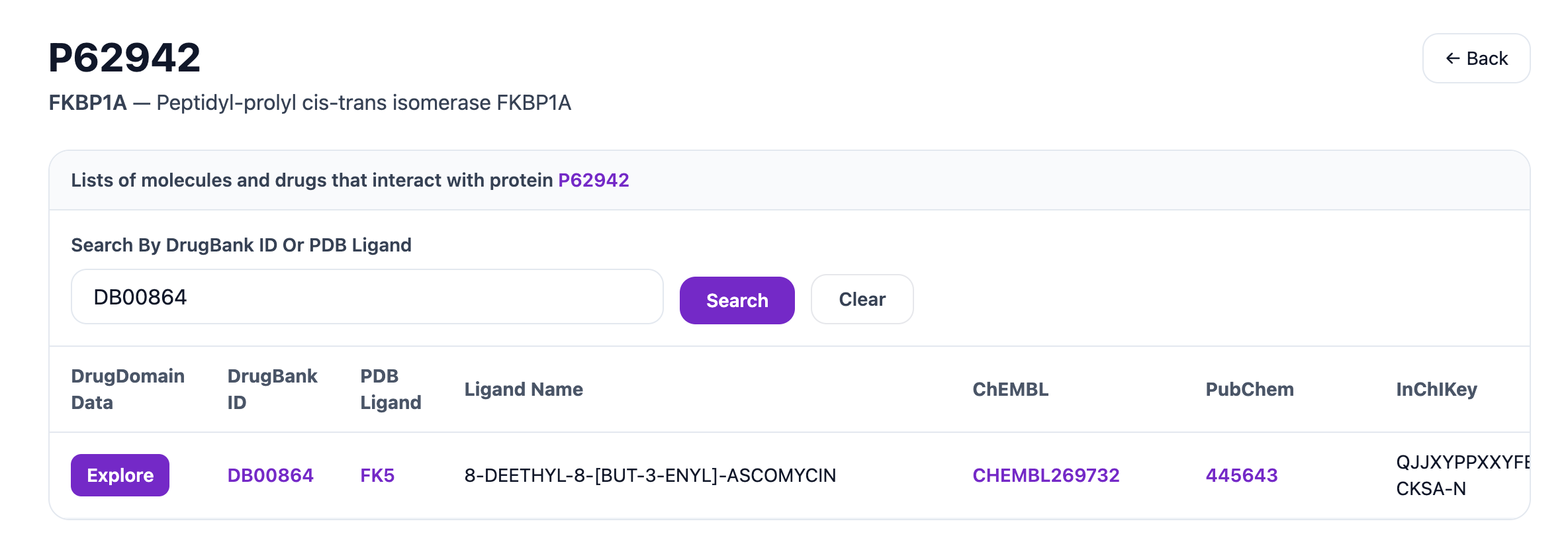
Searching for a specific DrugBank entry like DB00864 and clicking Explore opens the detailed molecule page.
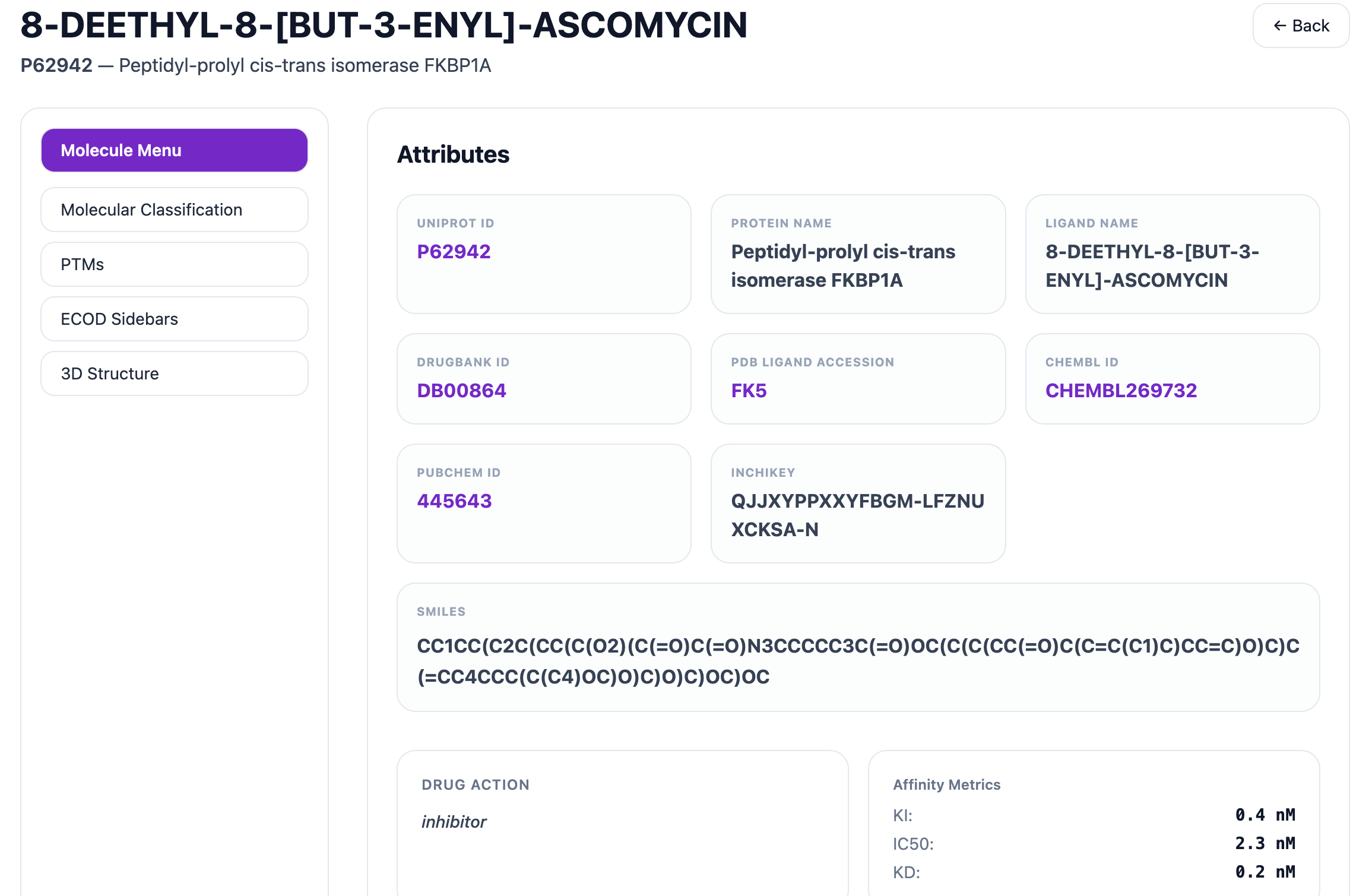
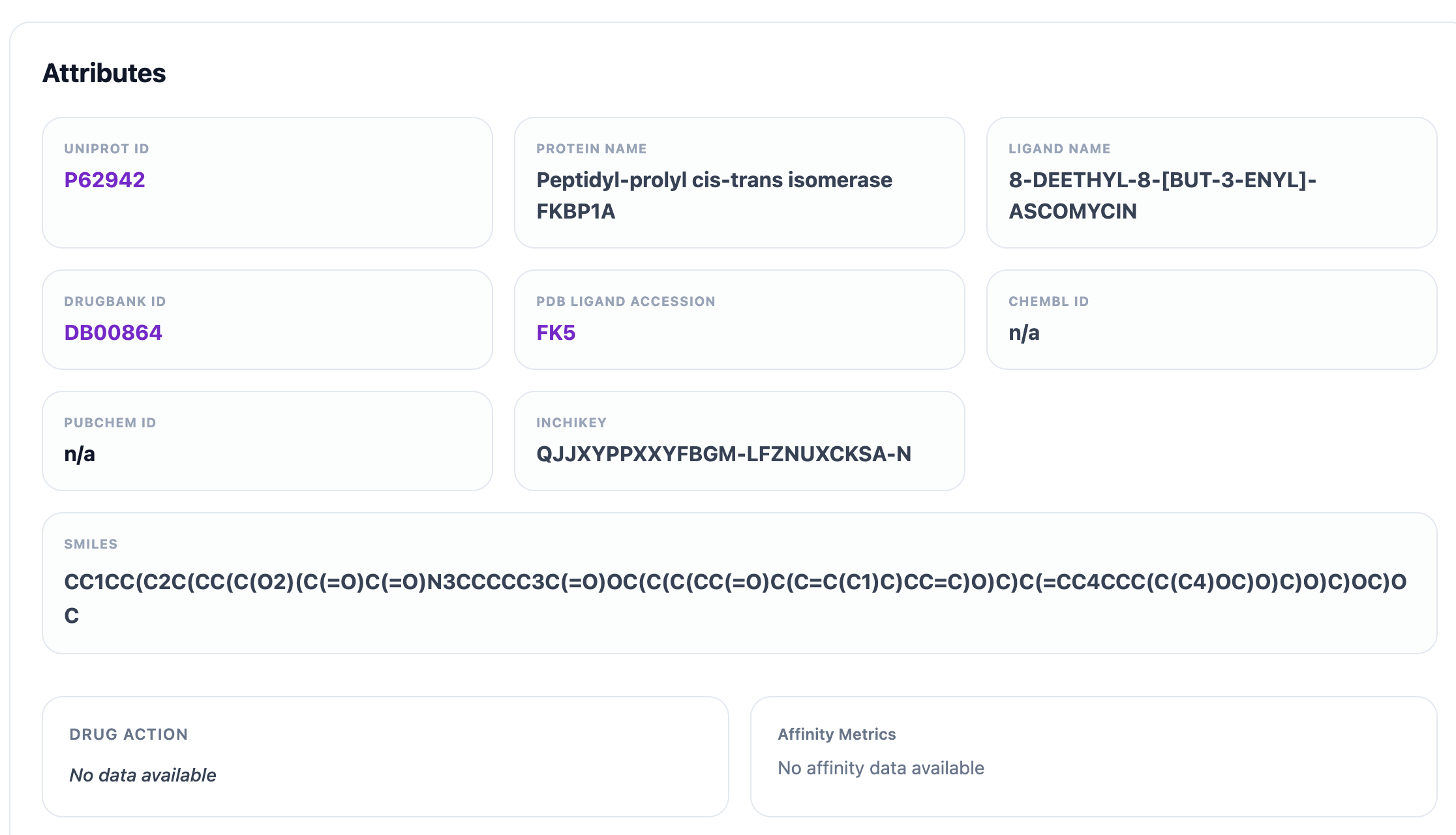
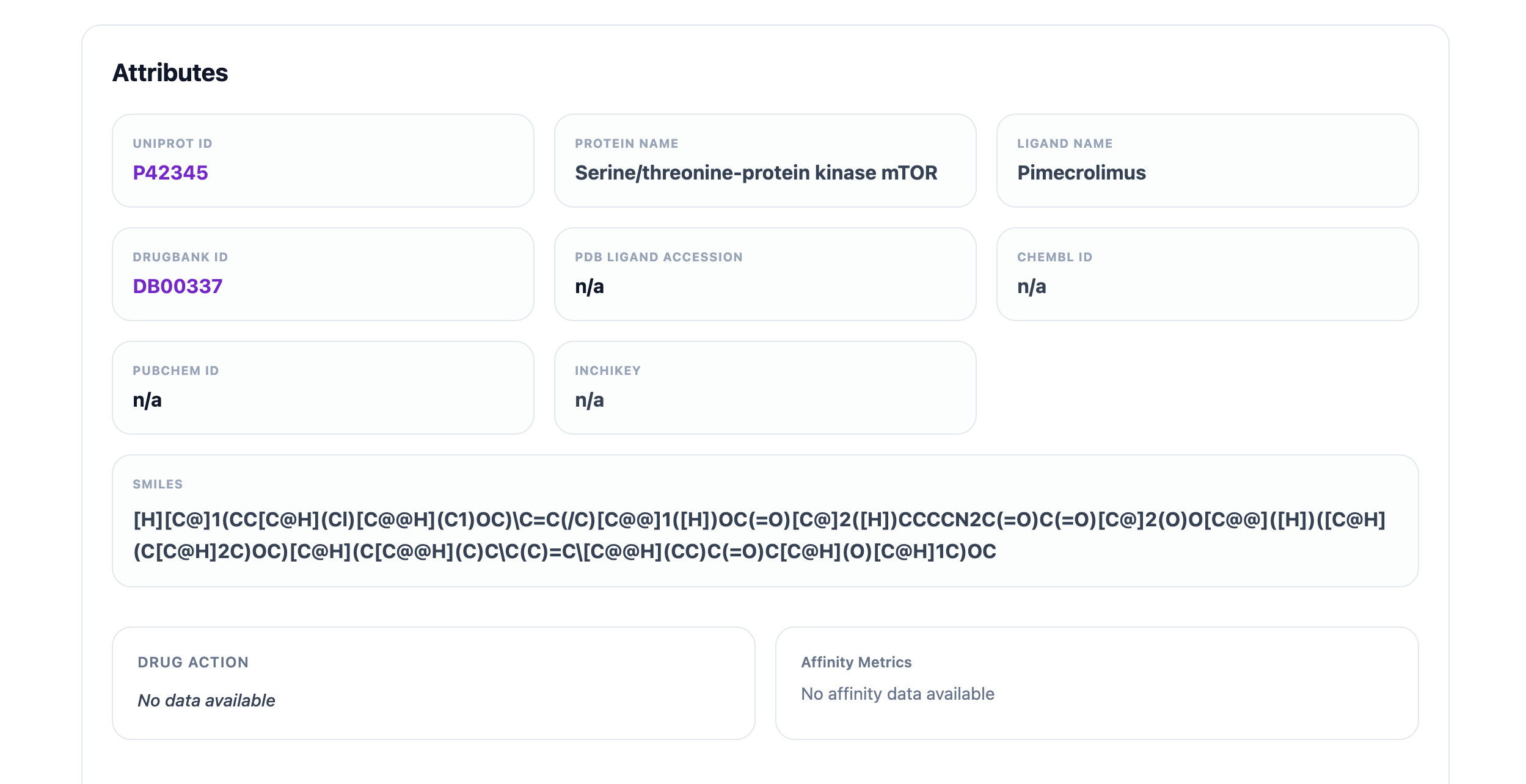
This page includes a left sidebar and opens by default on the Molecular Menu tab. It displays key molecule-level attributes such as UniProt ID, Protein Name, Ligand Name, DrugBank ID, PDB Ligand, ChEMBL ID, PubChem ID, InChIKey, SMILES, Drug Action, and Affinity Metrics. Each identifier is clickable and links to its corresponding external database for more detailed information. For example, clicking the UniProt ID P62942 opens its entry on UniProt, the DrugBank ID DB00864 opens its page on DrugBank, the PDB Ligand FK5 links to its record on RCSB Ligand, the PubChem ID 445643 opens its page on PubChem, and the ChEMBL ID CHEMBL269732 opens its entry on ChEMBL.
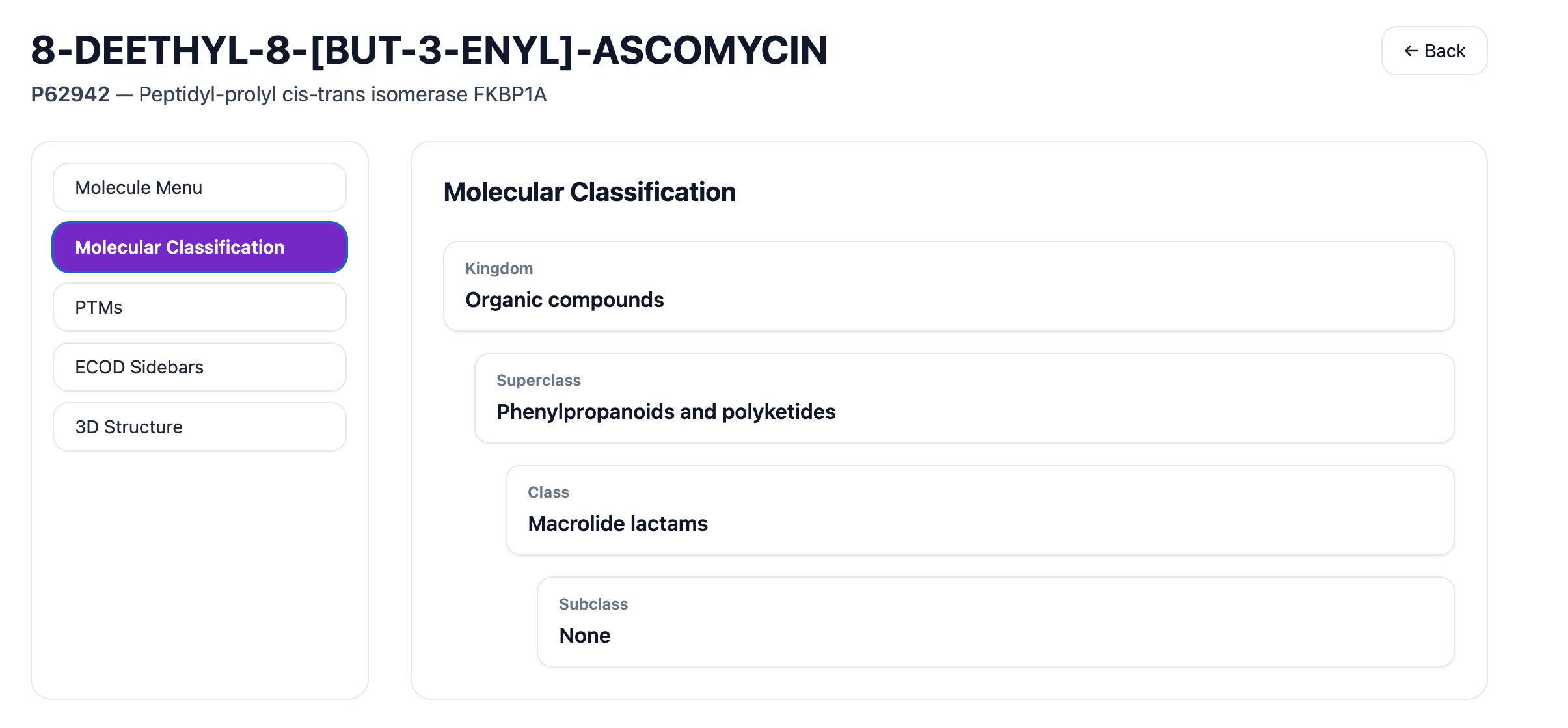
The Molecular Classification tab shows the Kingdom, Superclass, Class, and Subclass for the selected molecule.
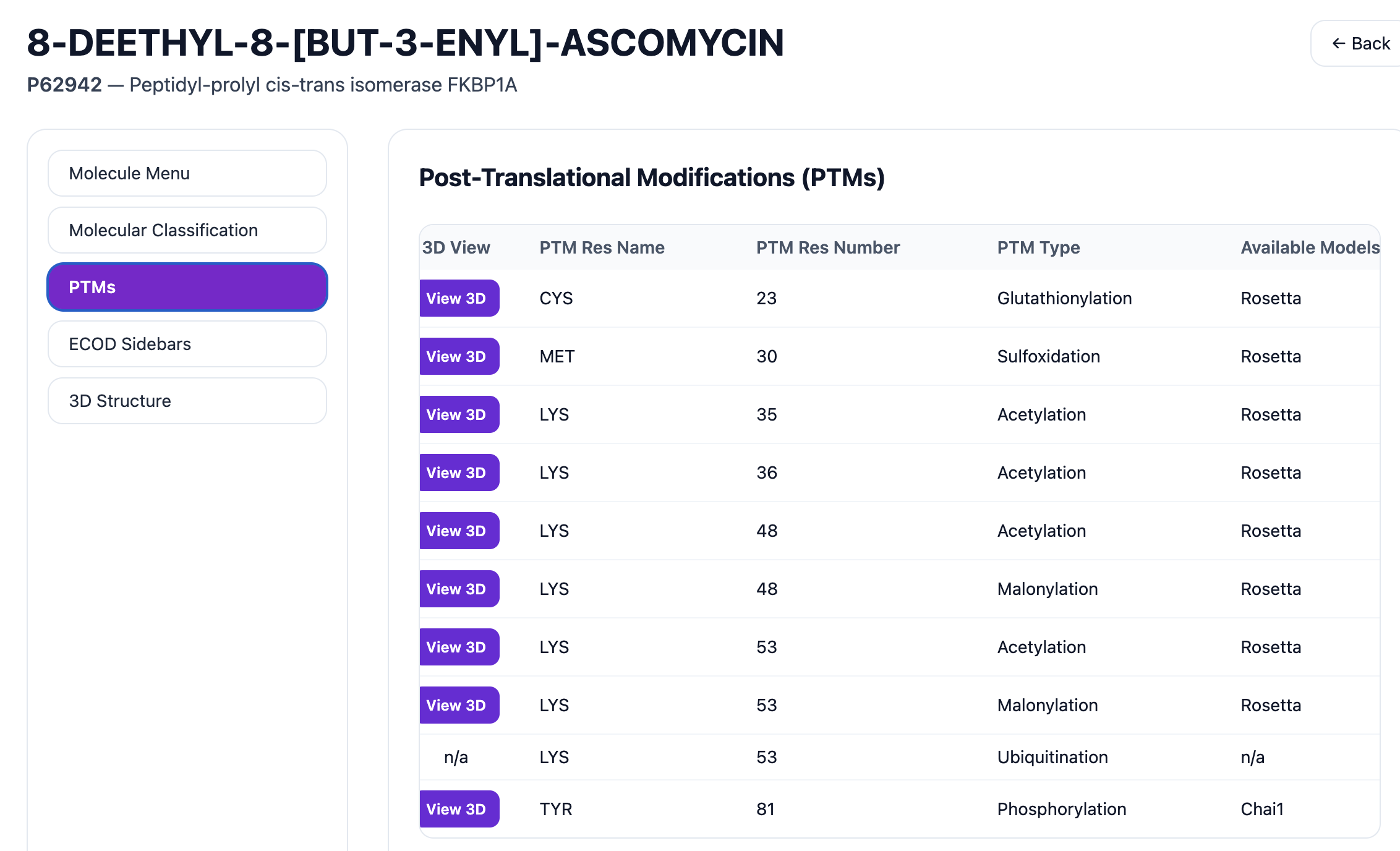
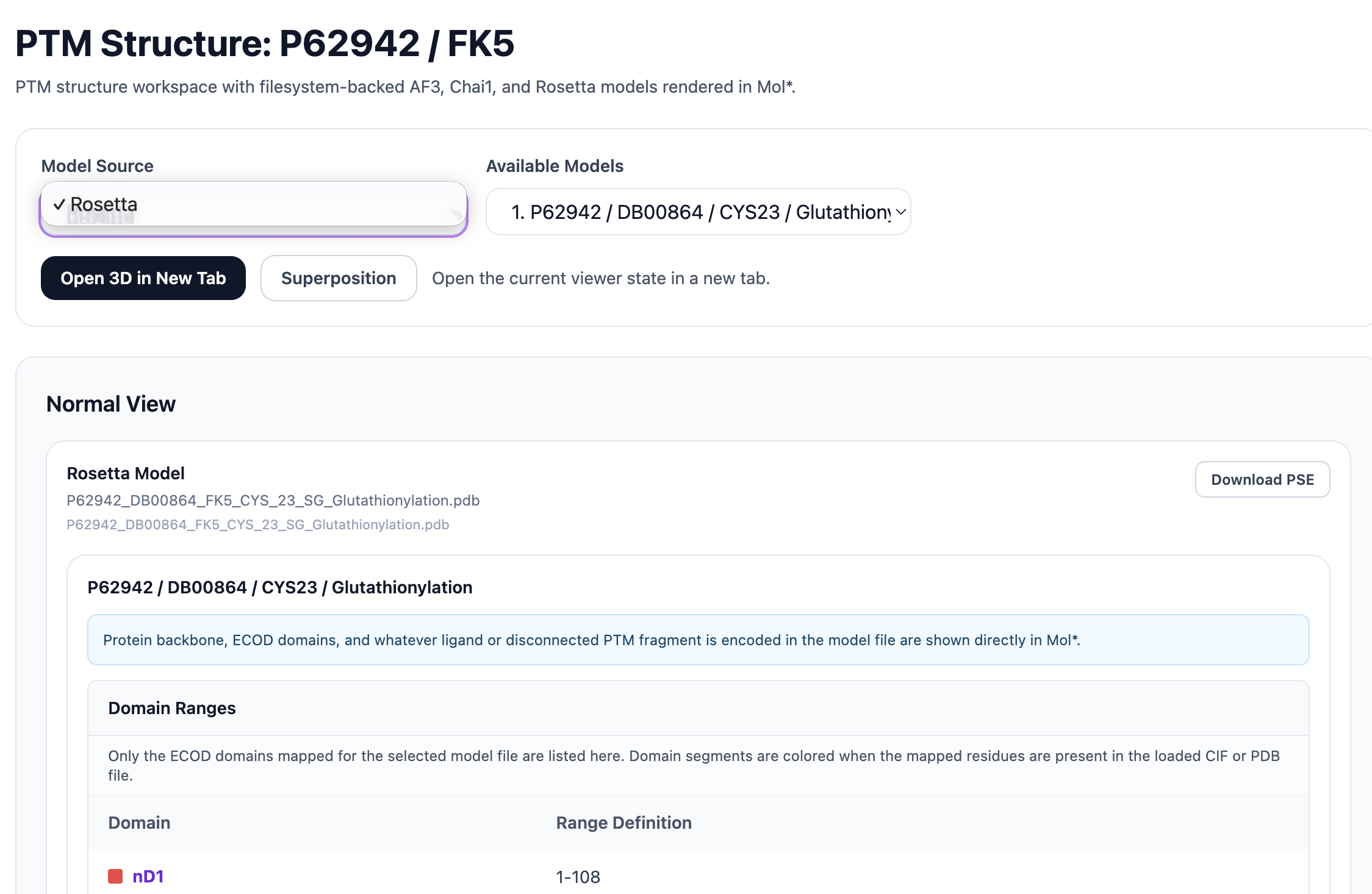
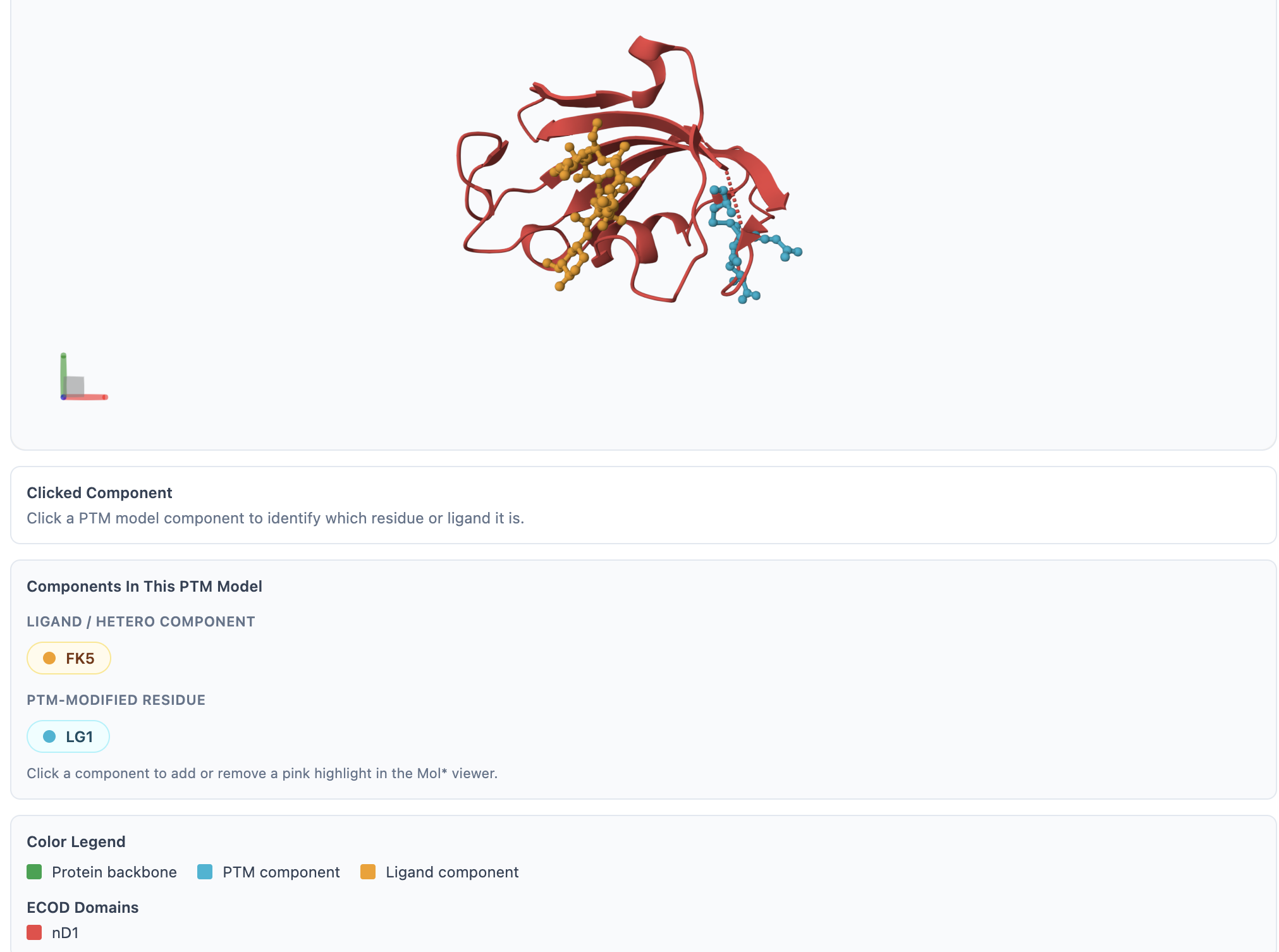
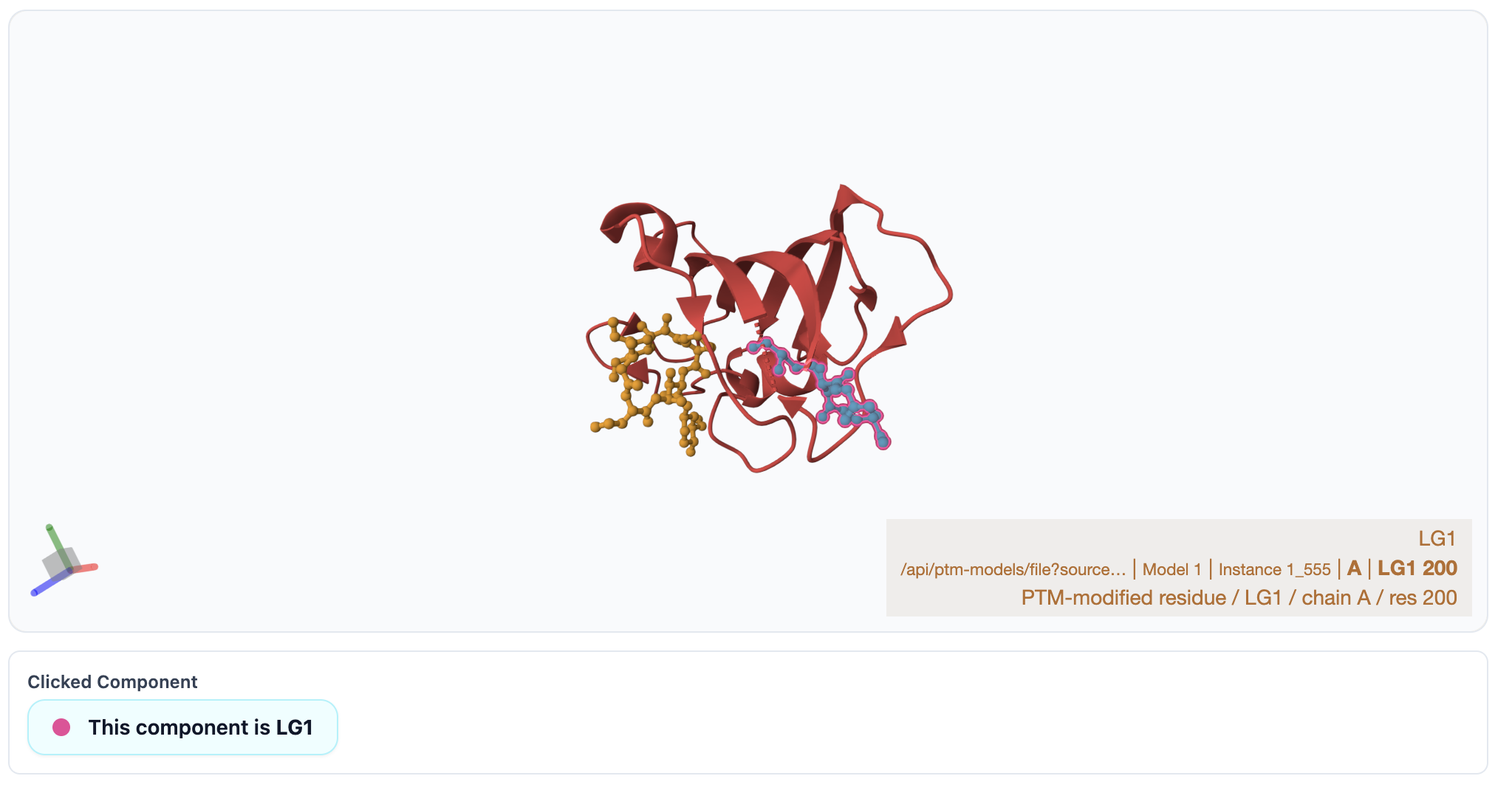
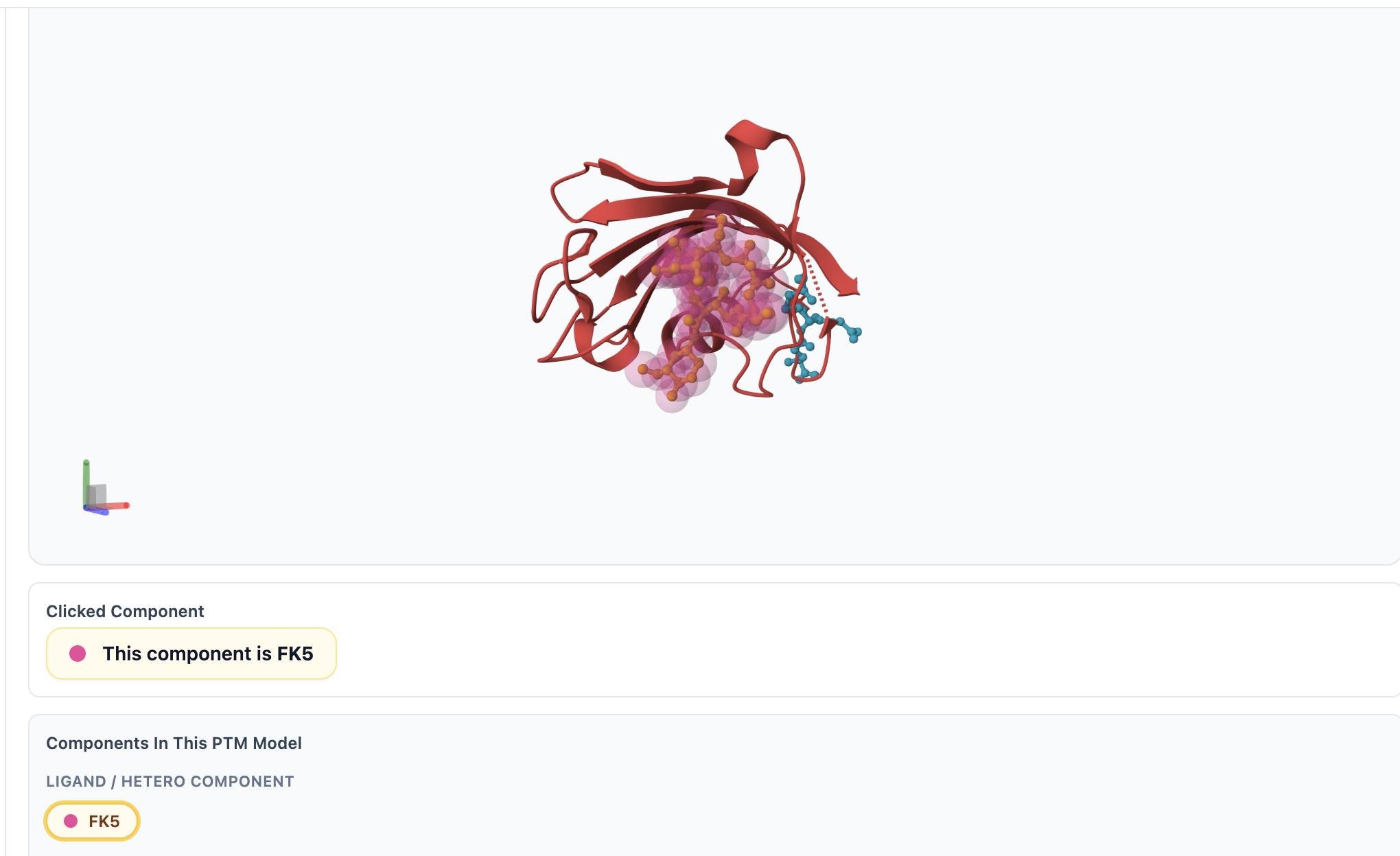
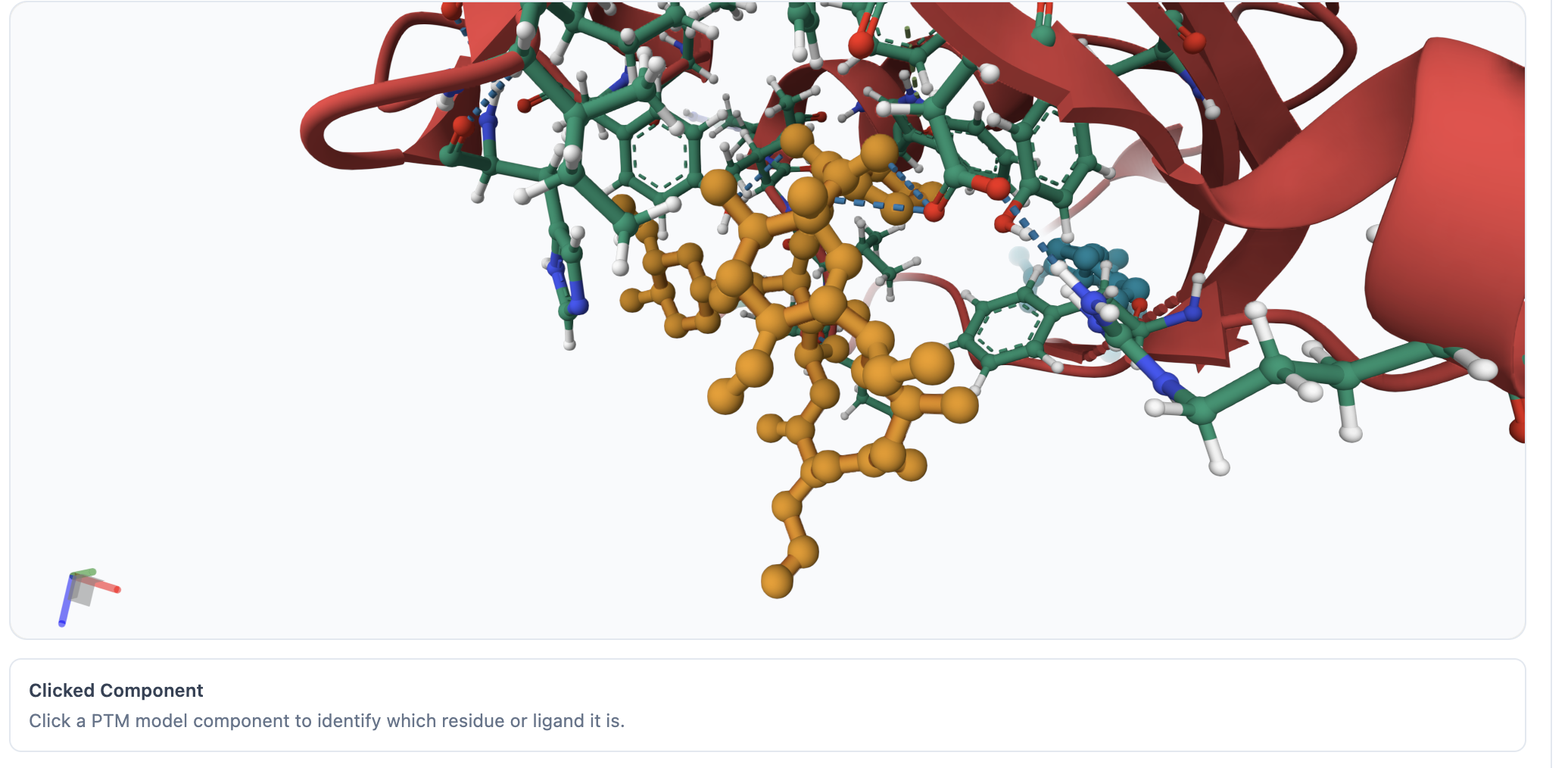
The PTMs tab provides detailed information about post-translational modifications for the selected protein–ligand pair. It includes the PTM Residue Name, PTM Residue Number, PTM Type, Available Models (such as Rosetta, Chai1, or AF3), and a 3D View button when a model is available. Clicking the 3D View opens the structure in a new tab using Mol*, where you can rotate, zoom, and explore the structure interactively. In the viewer, PTM-modified residues are highlighted in cyan, the ligand in yellow, the protein backbone in green, and ECOD domains are shown in distinct colors along with their domain names and residue ranges. You can hover over or click on specific regions of the structure to inspect additional details. A Download PSE button is also available, allowing you to download the rendered structure as a .pse file for use in PyMOL.
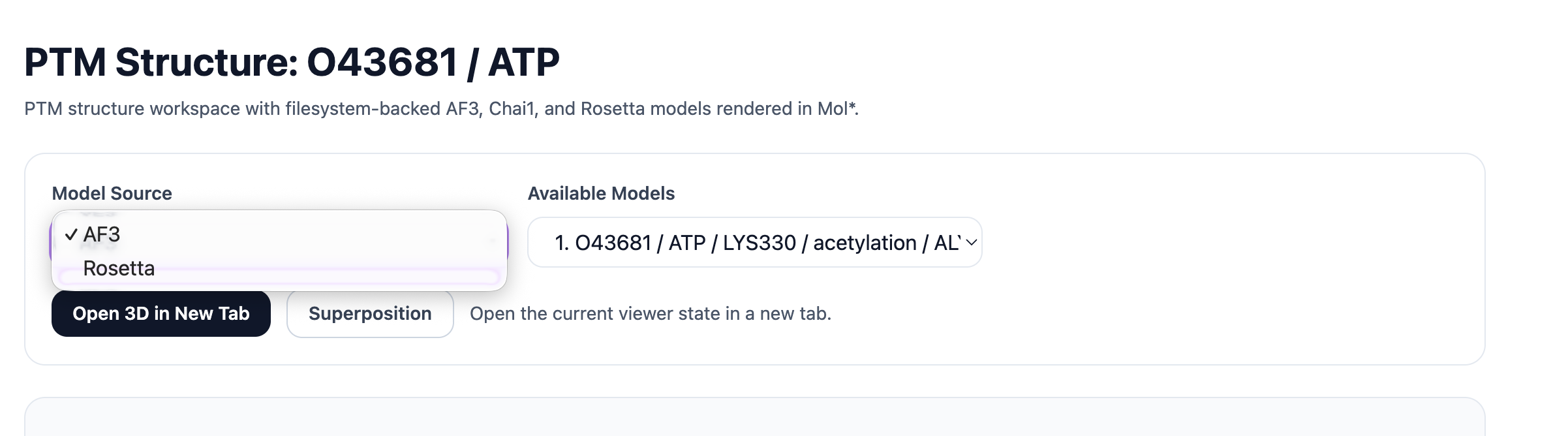
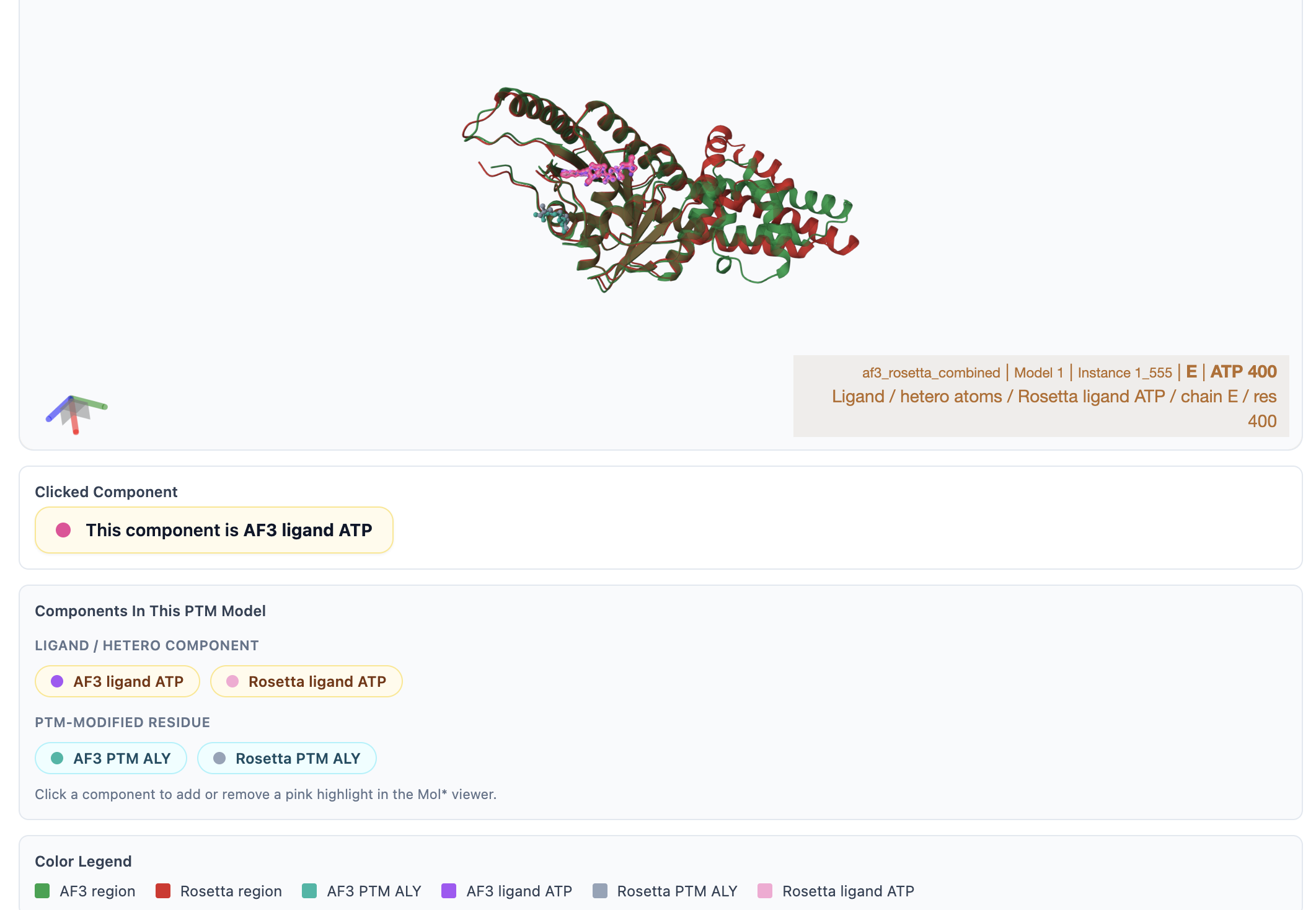
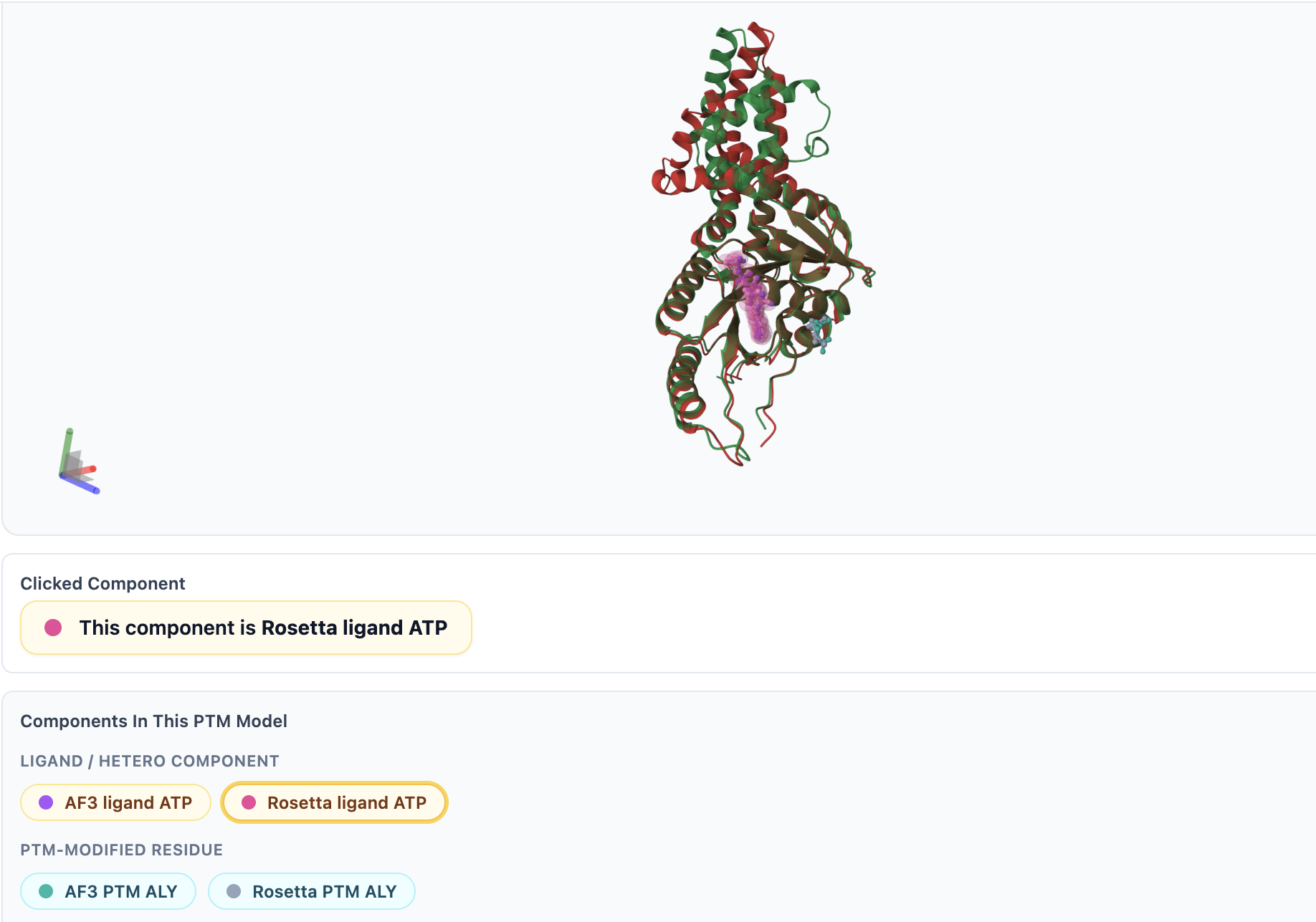
The Components in This PTM Model section lets you select individual components, which will then be highlighted in pink within the 3D structure. Additionally, a Superposition button is provided: if multiple PTM models are available for the selected protein–ligand pair, a superimposed view will open in a new Mol* tab; otherwise, a message will indicate that no superposition is available.
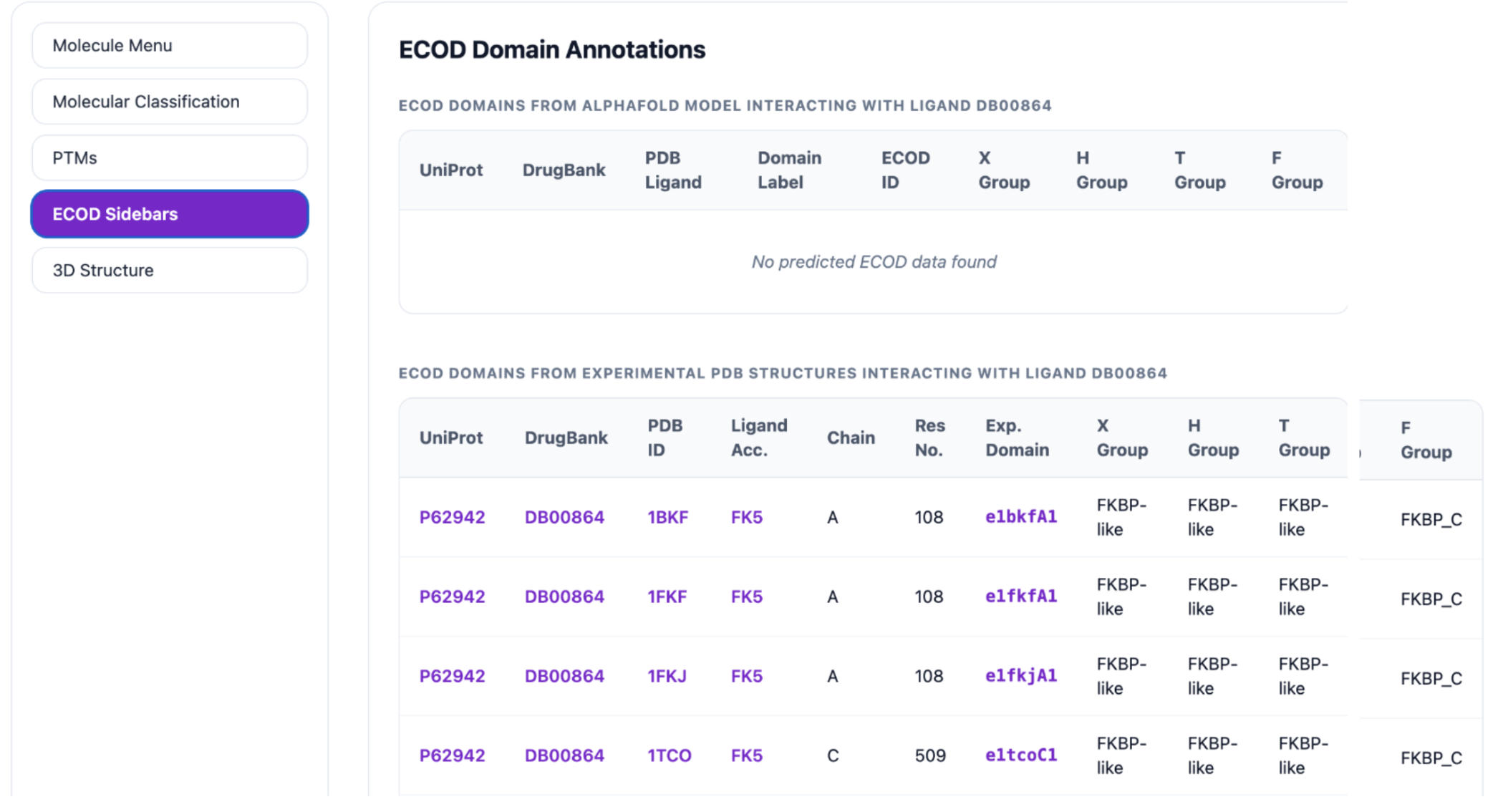
The listed ECOD domains are linked to their external database. For example, clicking nD1 opens the corresponding ECOD entry. All pair-level ECOD domains are listed in the table; however, in the 3D viewer, only those domain segments whose residues are present in the selected model file can be highlighted.
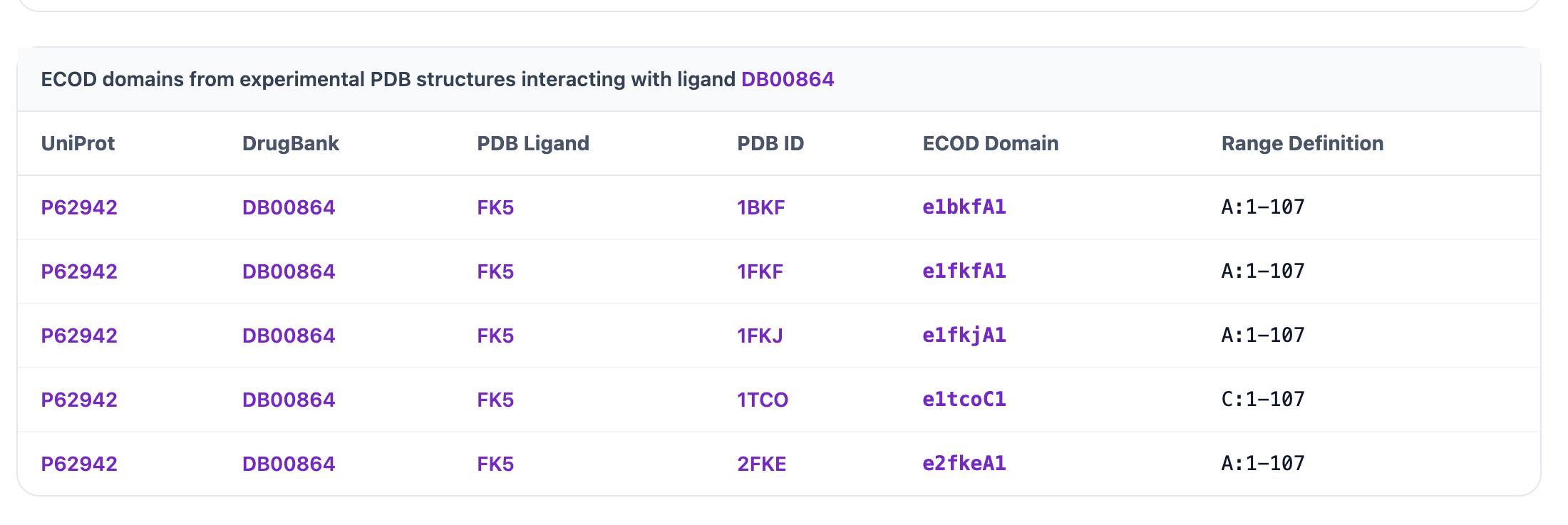
The ECOD Sidebars display domains associated with the selected protein–ligand pair, which may be either experimental or predicted. The table includes key details such as UniProt ID, DrugBank ID, PDB ID, PDB Ligand, Chain, Residue Number, Domain Name, and the X, H, T, and F-group classifications. Each entry is interactive and links to its corresponding external resource. For example, clicking the UniProt ID P62942 opens its UniProt entry, the DrugBank ID DB00864 opens its DrugBank page, the PDB ID 1FKJ opens its RCSB PDB structure page, and the PDB Ligand FK5 opens its RCSB ligand page. Clicking the Domain Name e1bkfA1 opens the corresponding ECOD domain page.
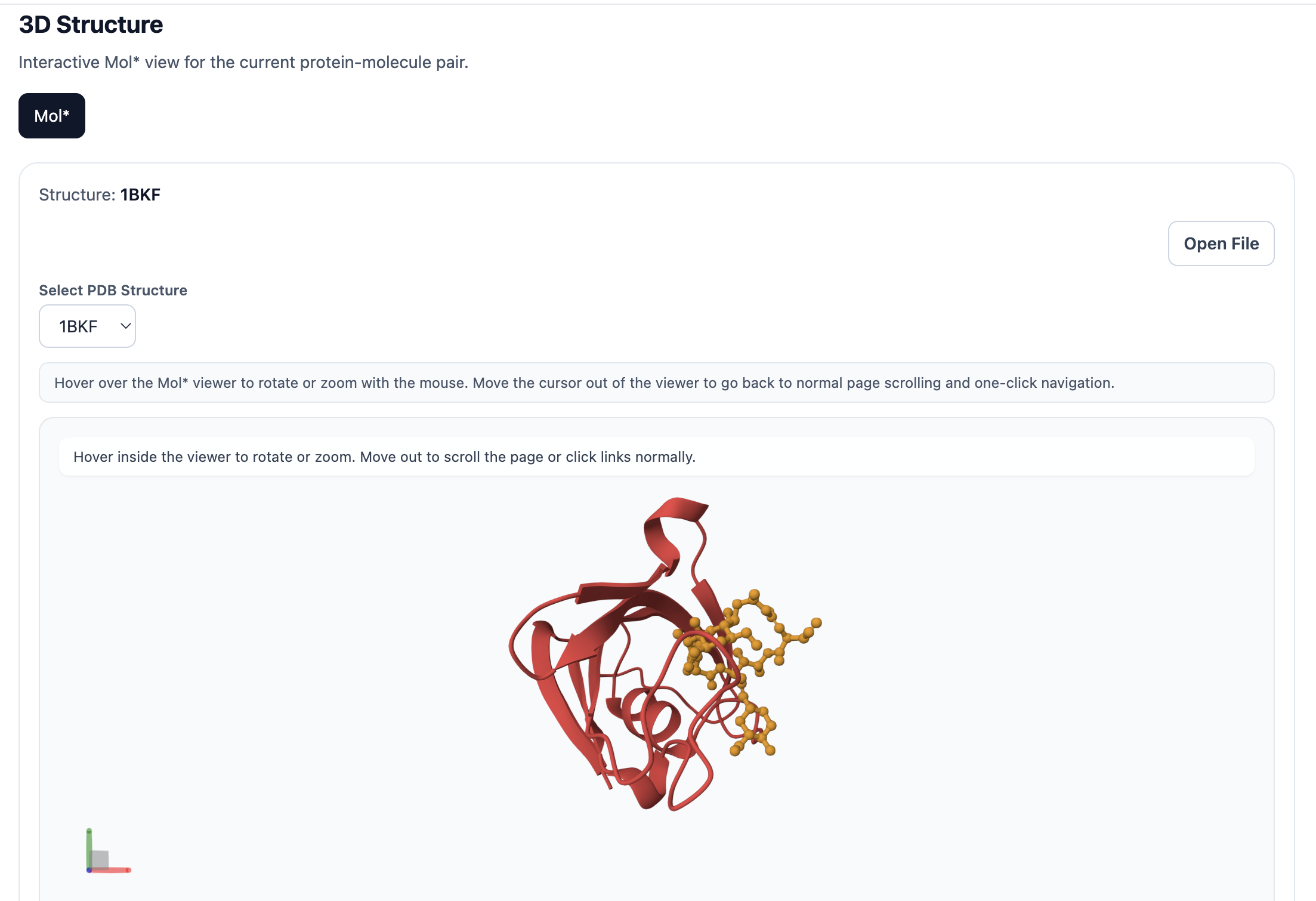
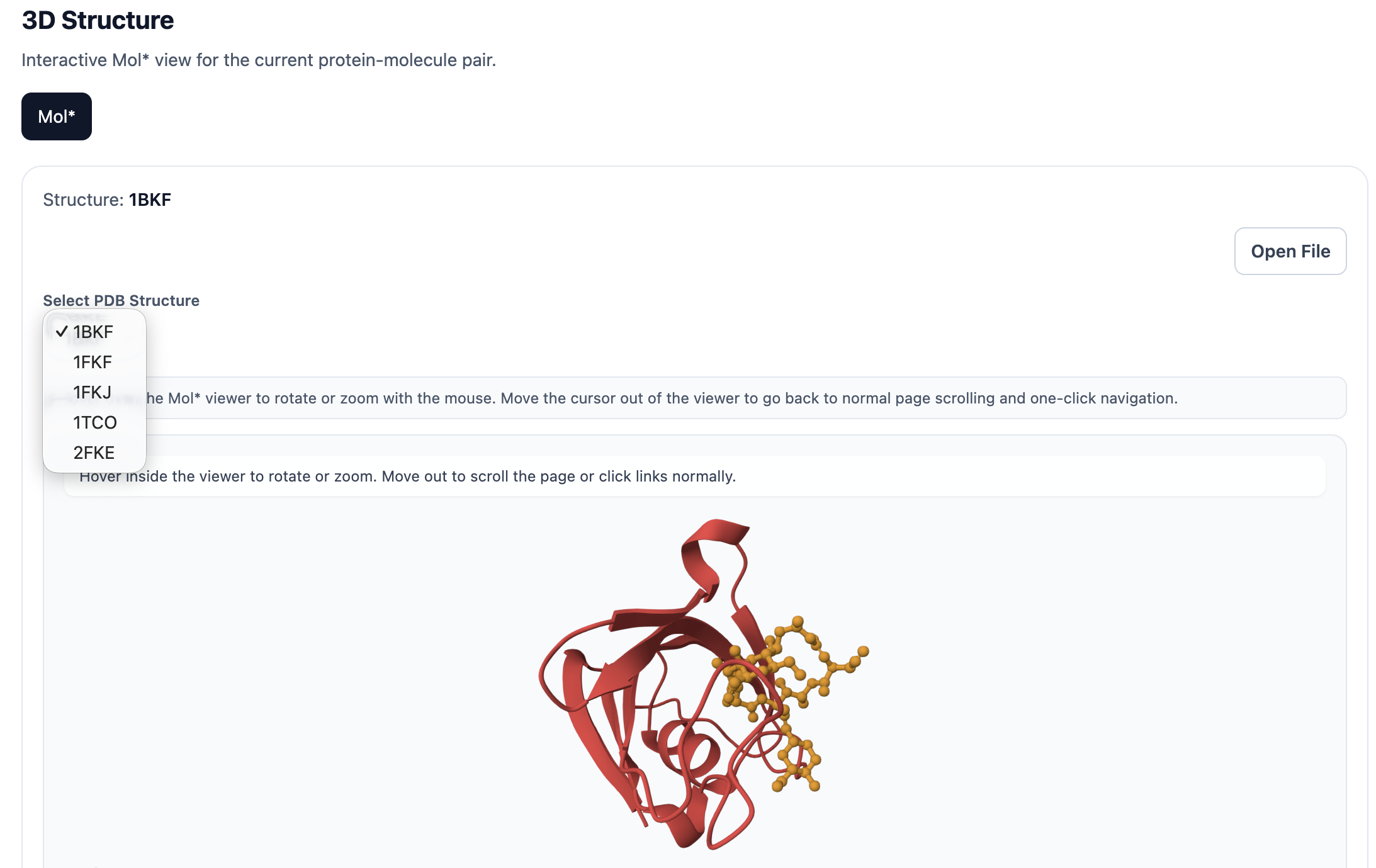
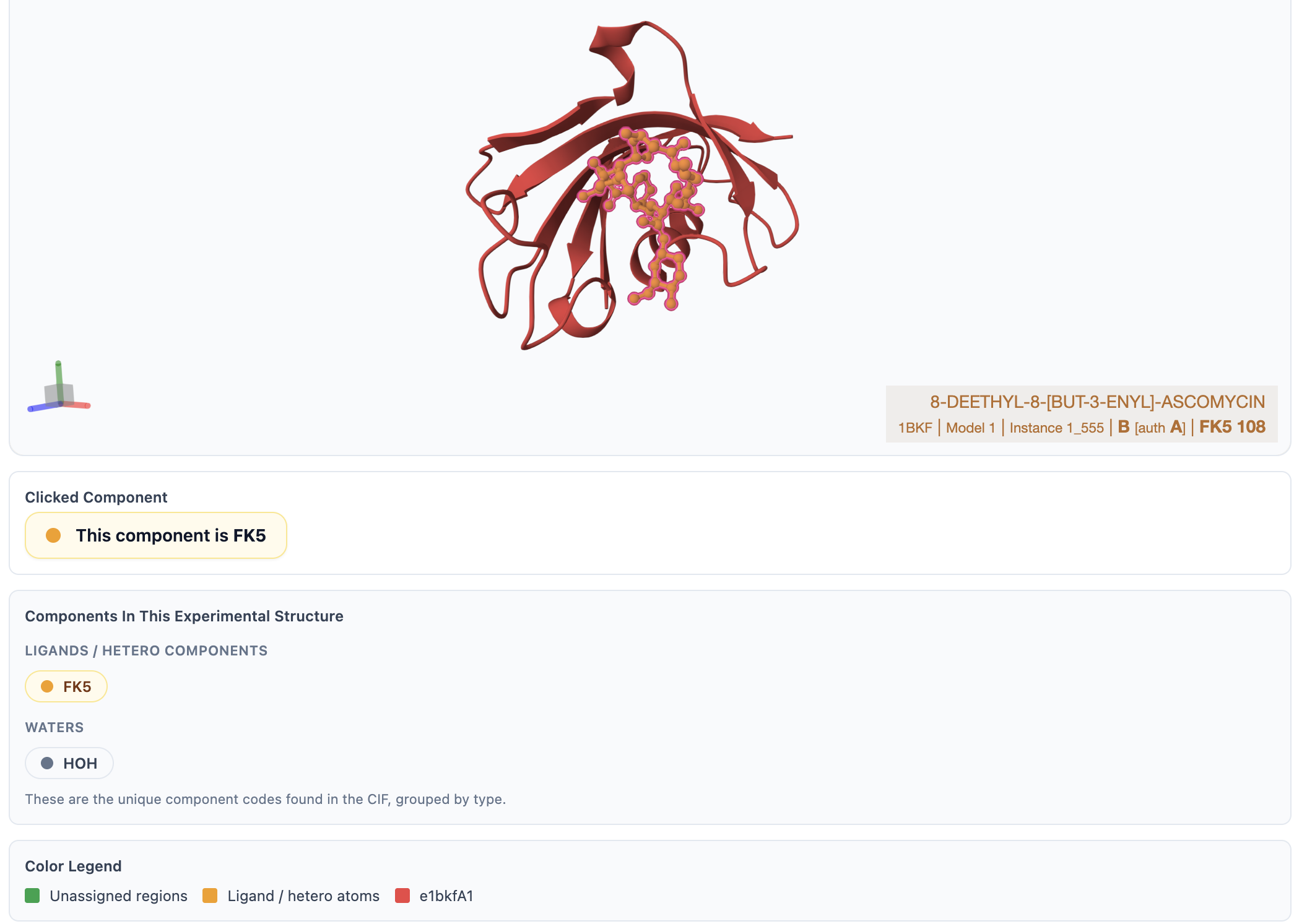
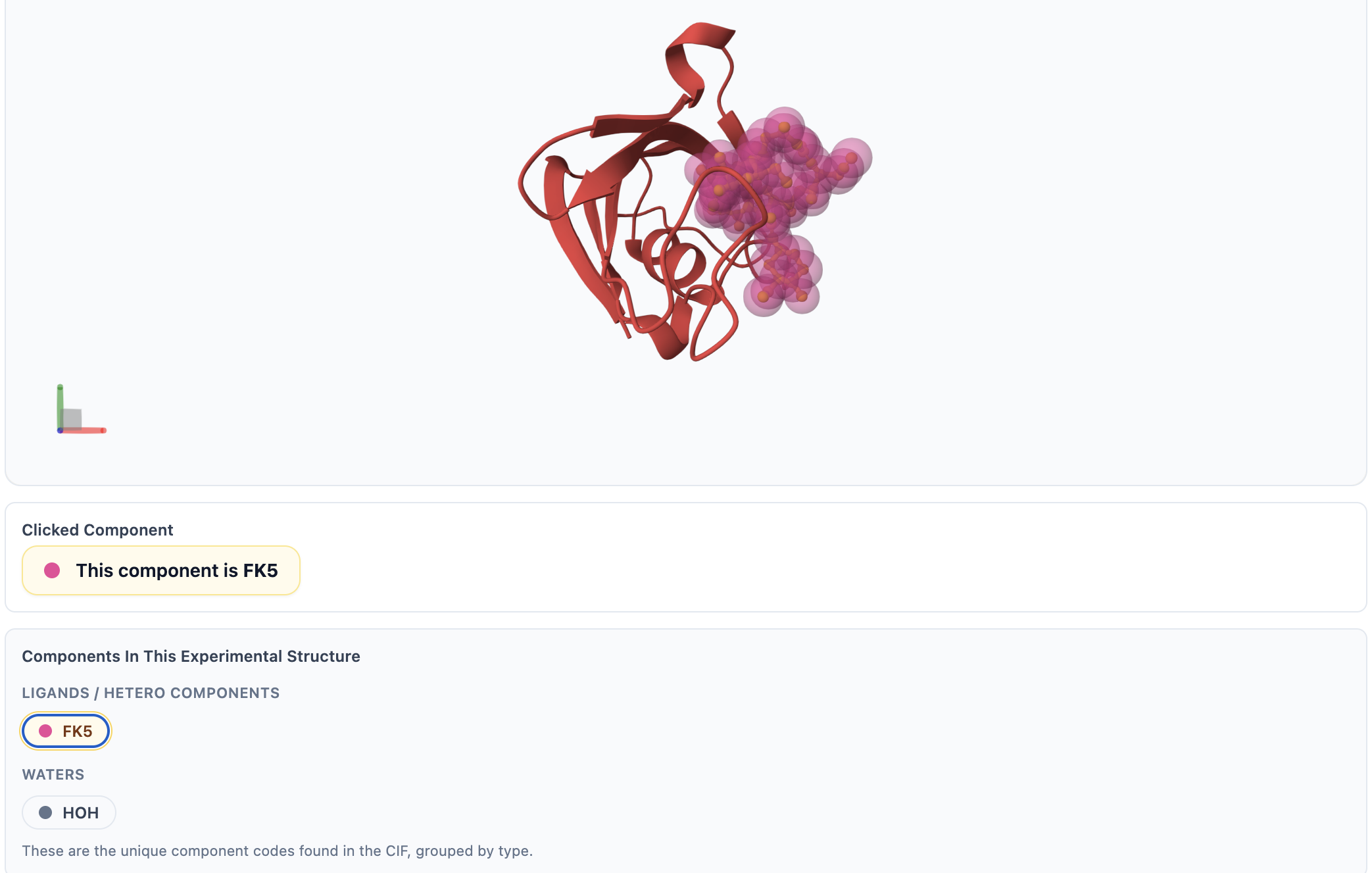
The 3D Structure option renders the protein, ligand, and ECOD domains in Mol*, with domain residue ranges included in the display. In the viewer, ligand is shown in yellow, each ECOD domain is colored distinctly, and the protein backbone is displayed in green. You can interact with the structure by zooming, rotating, and selecting specific regions for closer inspection. A Open File button allows you to download the corresponding .pml file for use in PyMOL. You can also explore different structures by selecting a PDB ID from the Select PDB Structure dropdown menu. For Experimental ECODs, the default view highlights the assigned ligand; additional ligands and ions are listed under the Components in This Experimental Structure section. Clicking any component will highlight it in pink within the Mol* viewer.
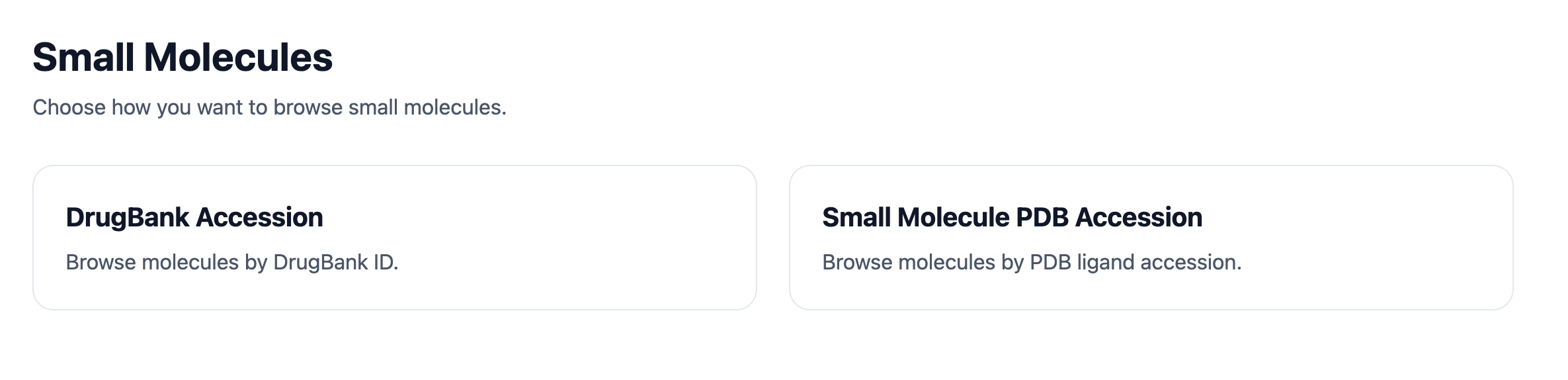
The Small Molecules module is divided into two browsing hierarchies: DrugBank Accession and PDB Accession. After clicking Explore Small Molecules, you can choose either route from the next page.
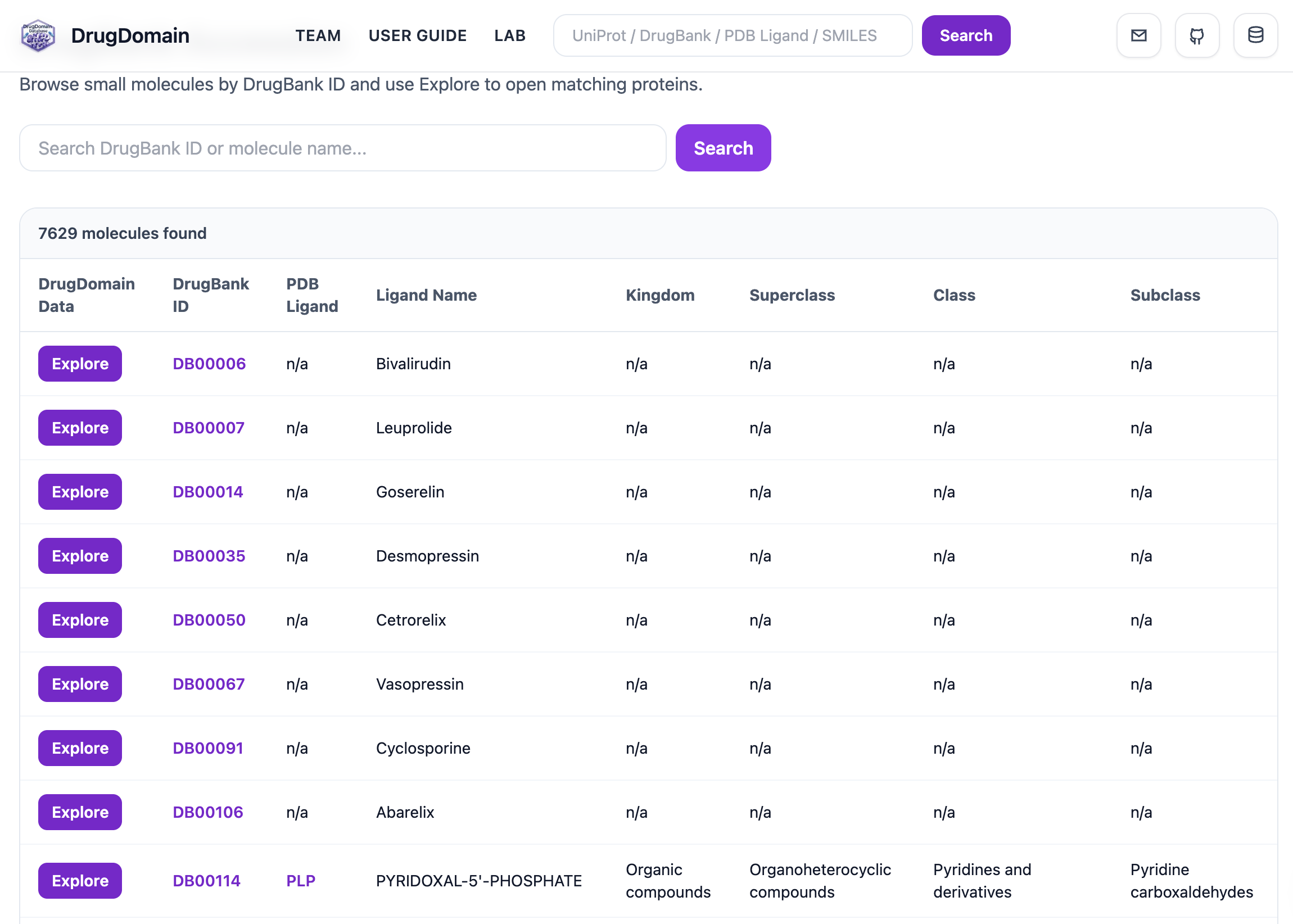
The DrugBank Accession page lists ligands with their DrugBank ID, representative PDB Ligand, Ligand Name, Kingdom, Superclass, Class, and Subclass. The search bar on this page allows searching by DrugBank ID or molecule name.
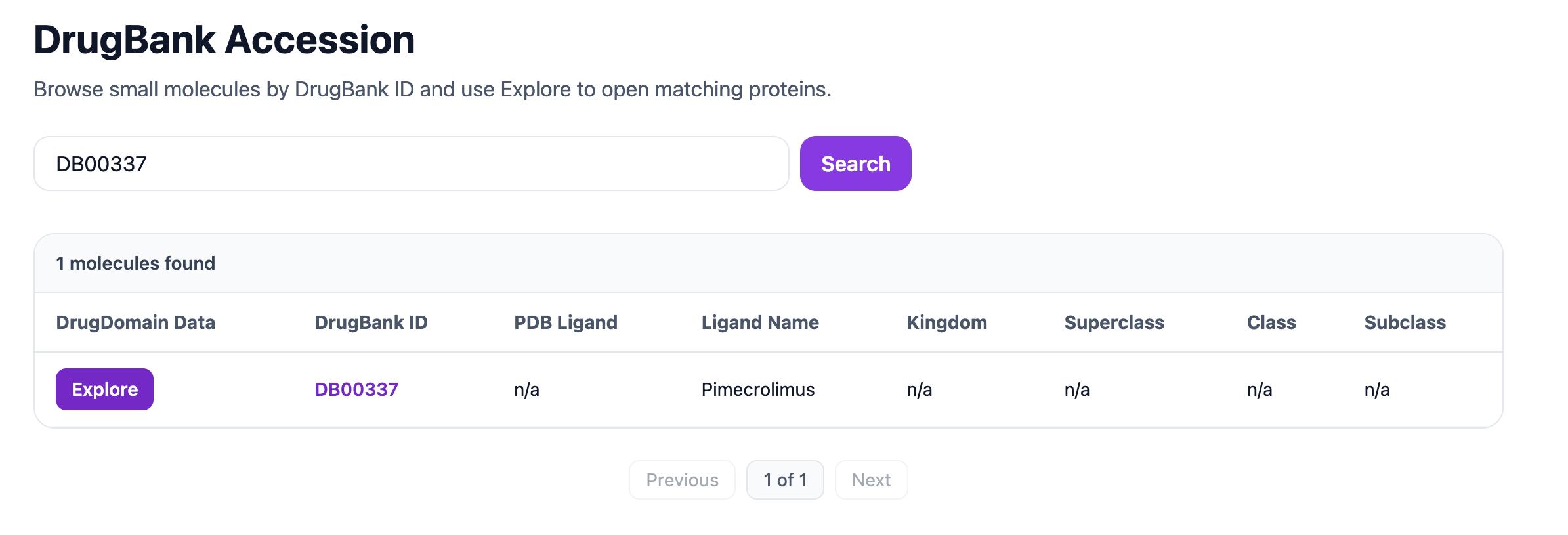
In the example below, searching for DrugBank ID DB00337 returns the matching ligand entry. Clicking Explore opens the proteins associated with that ligand.
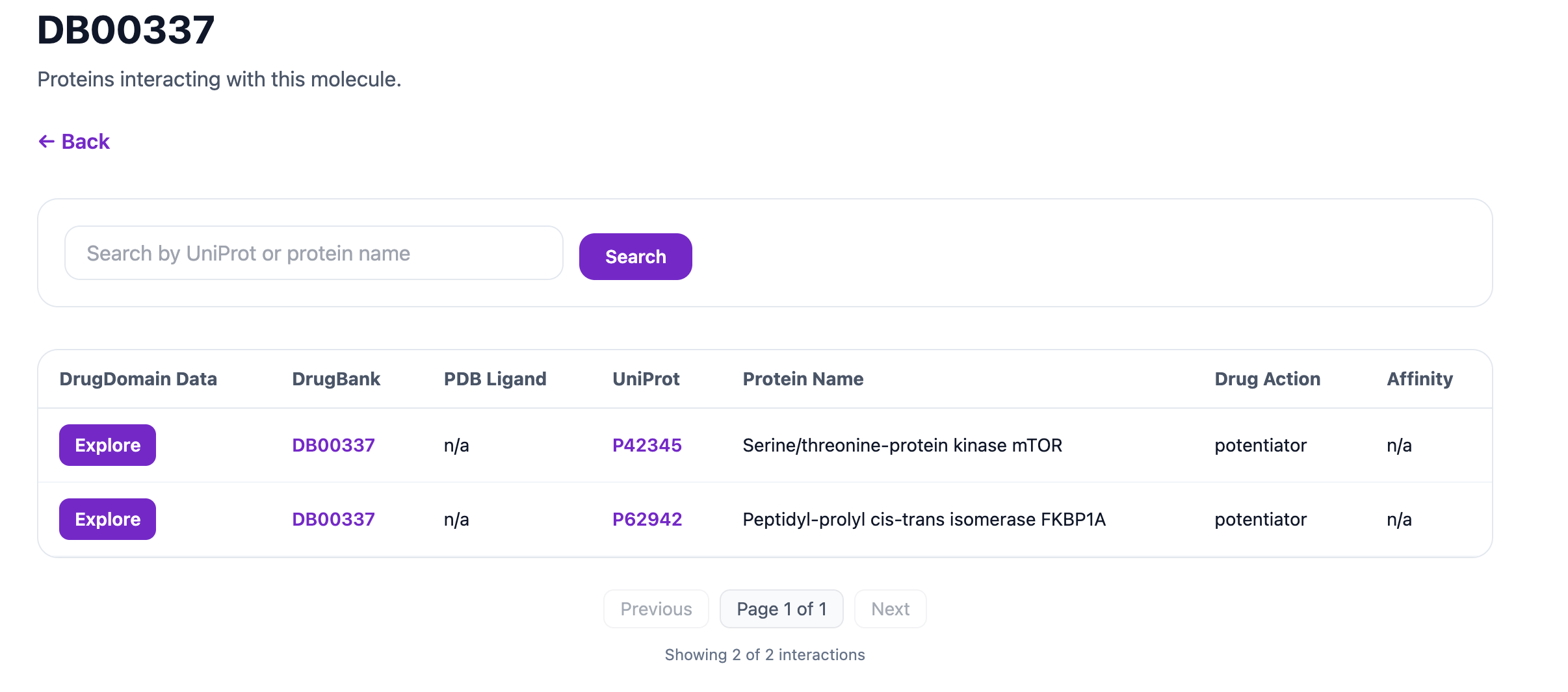
The next page also includes a search bar for proteins, allowing filtering by UniProt accession or protein name. The table displays key fields such as DrugBank ID, PDB Ligand, UniProt ID, Protein Name, Drug Action, and Affinity Information. The UniProt ID, DrugBank ID, and PDB Ligand entries are clickable and link to their respective external databases. Clicking the Explore button opens a detailed view with the same sections described in the Proteins module, including the Molecular Menu, Molecular Classification, PTMs, ECOD Sidebars, and 3D Structure.
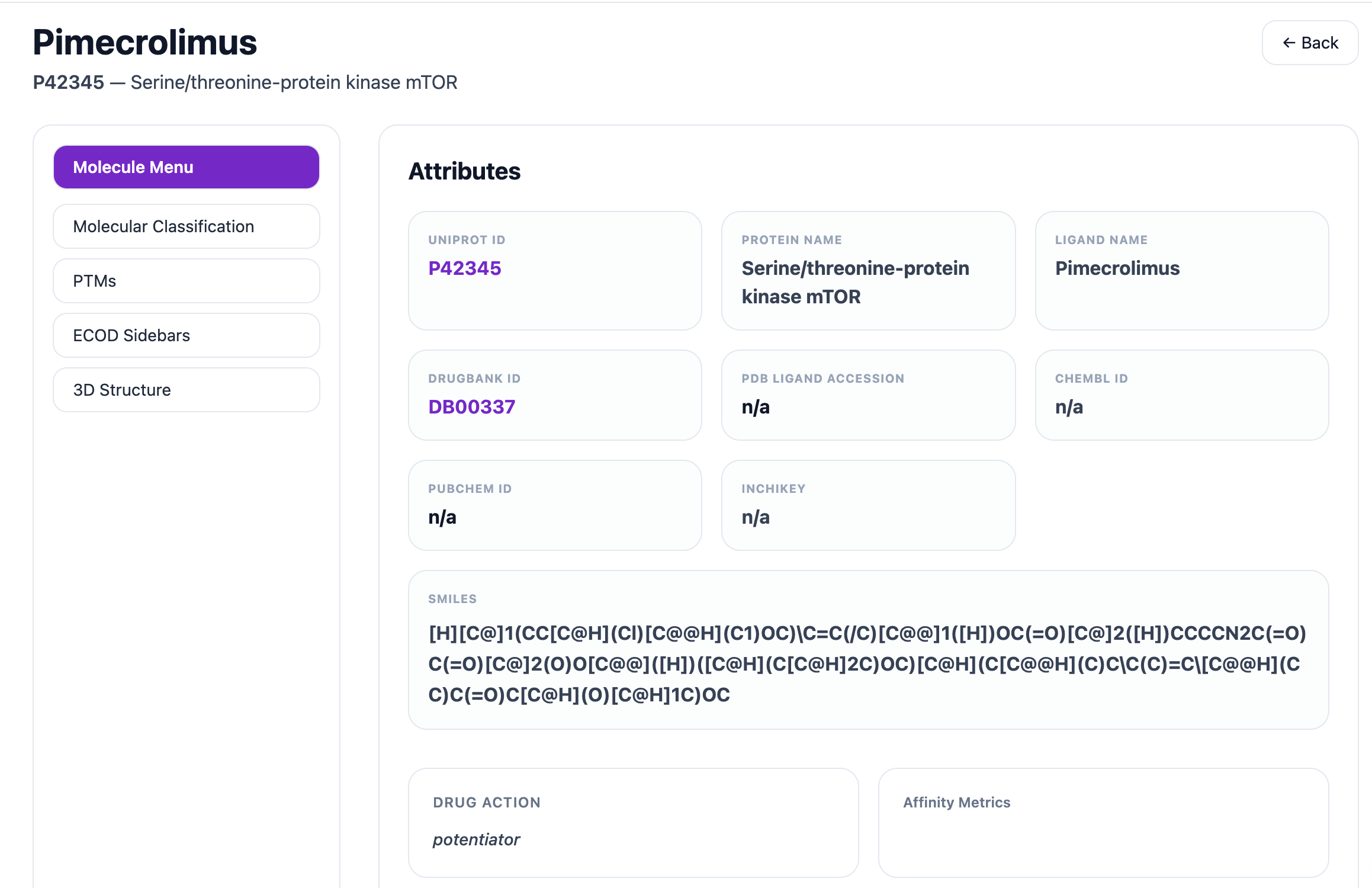
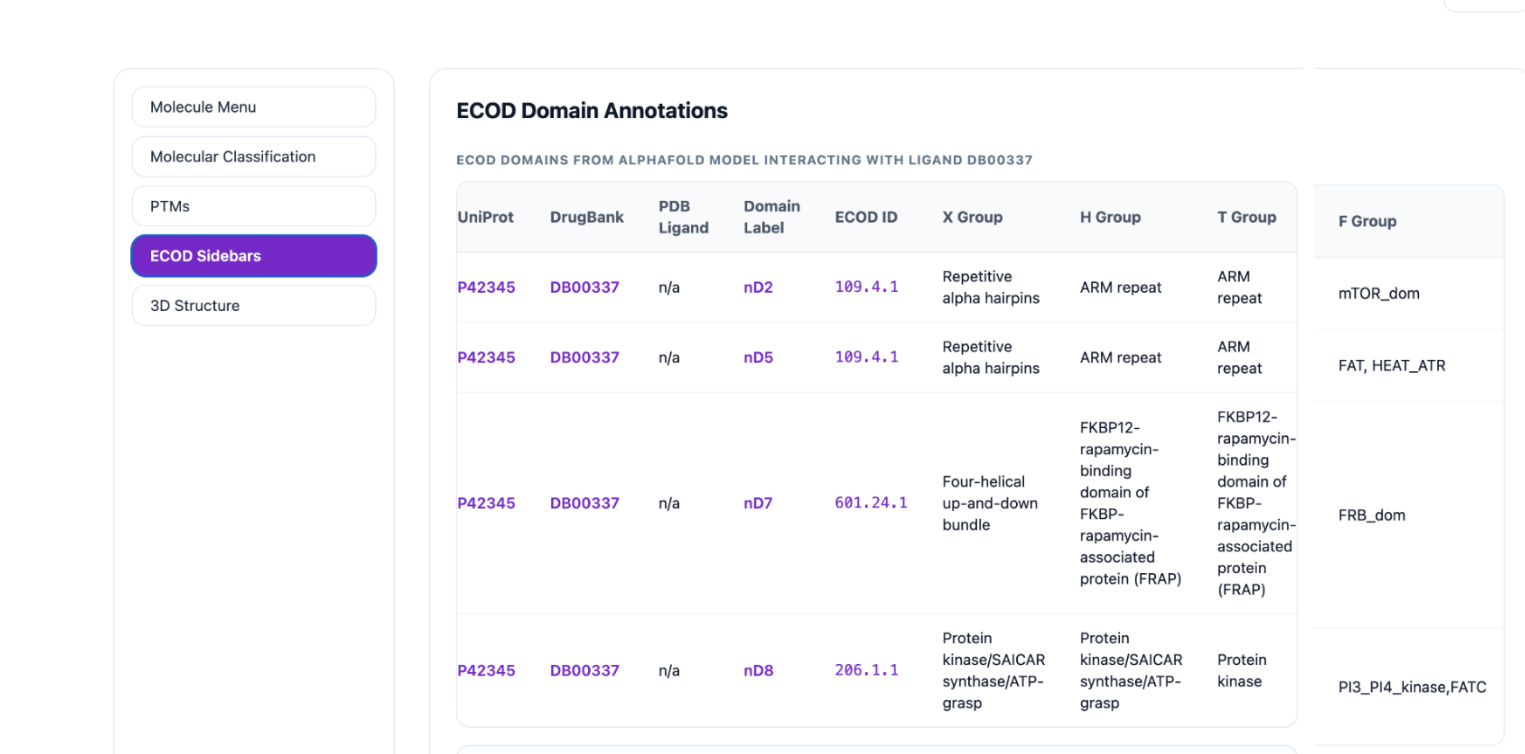
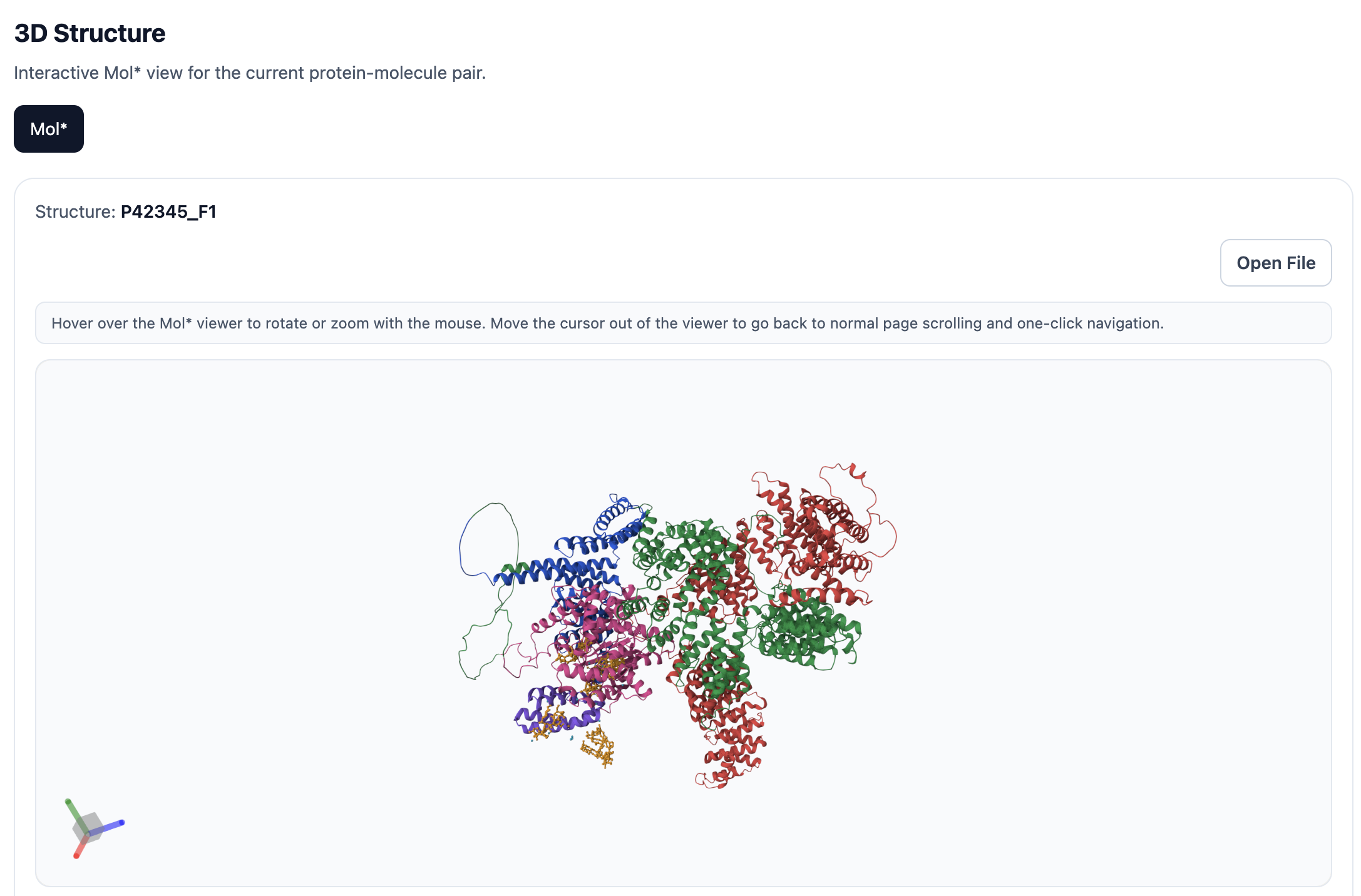
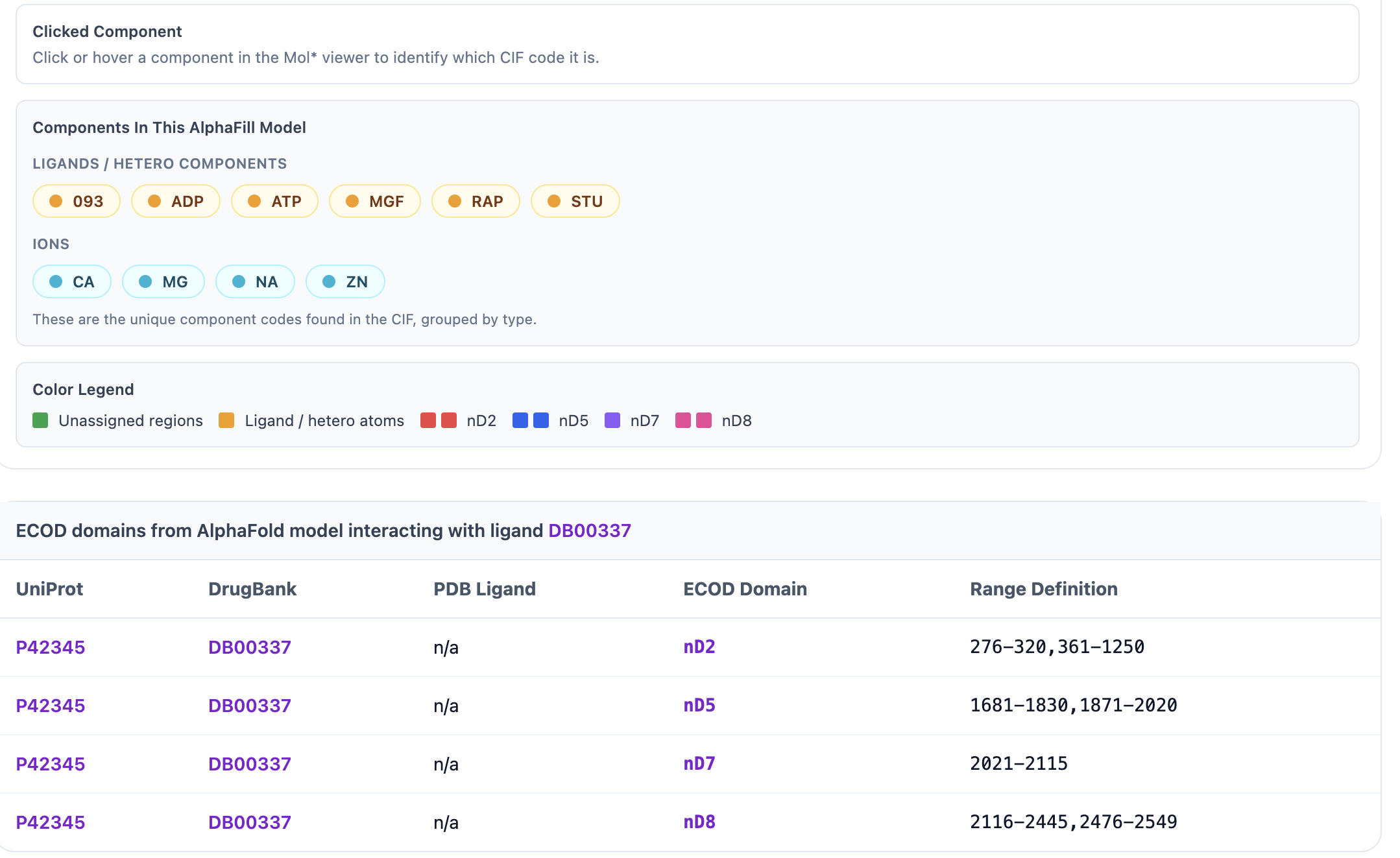
When AlphaFill ECOD domains are available, the ECOD Sidebars display the UniProt ID, DrugBank ID, PDB Ligand, Chain, Domain Name, ECOD ID, and the X, H, T, and F-group annotations. Clicking UniProt ID P42345 opens its UniProt entry, clicking DrugBank ID DB00337 opens the DrugBank page, and clicking ECOD domain nD2 opens the corresponding ECOD page. The 3D Structure option renders the domain ranges in Mol*.
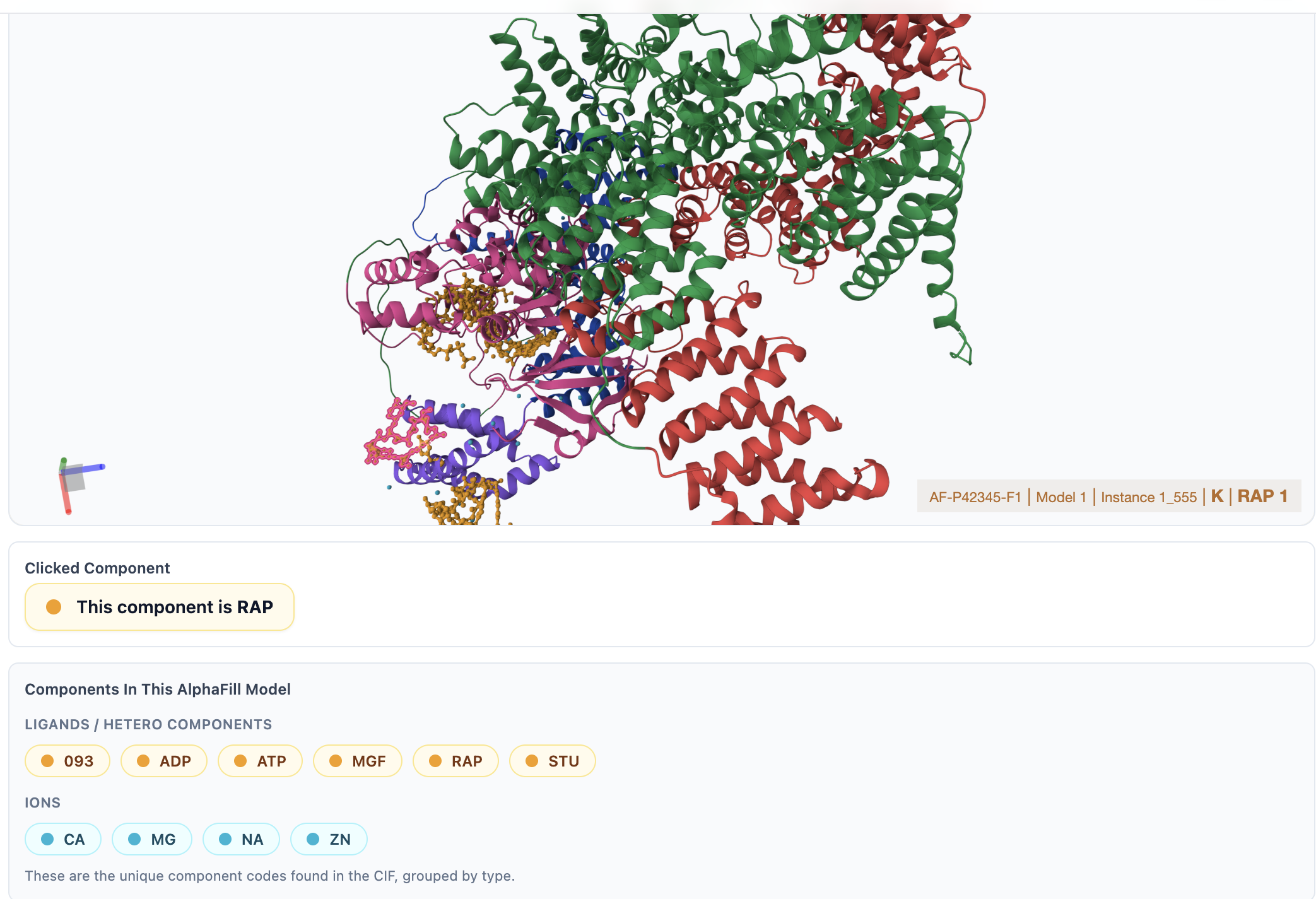
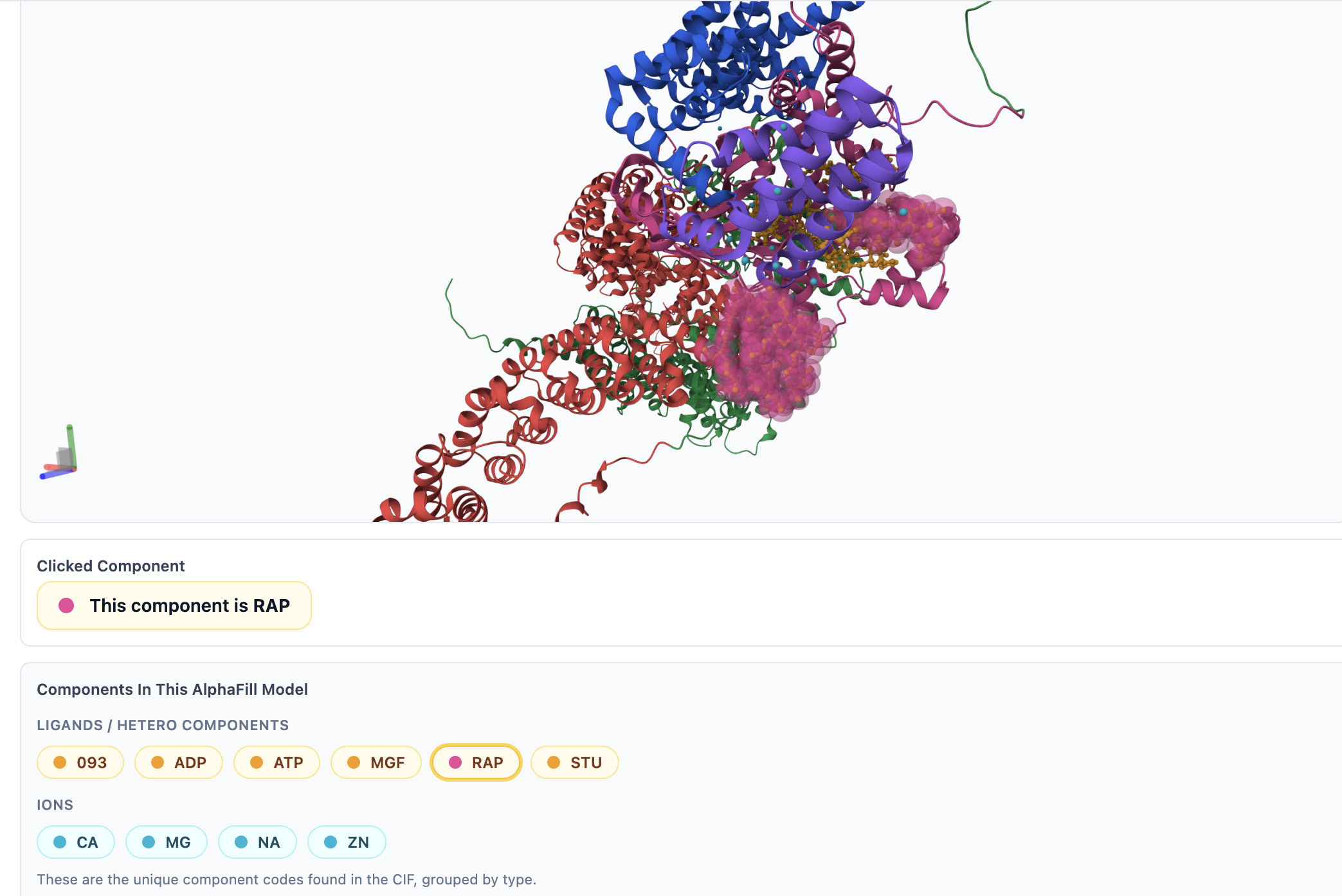
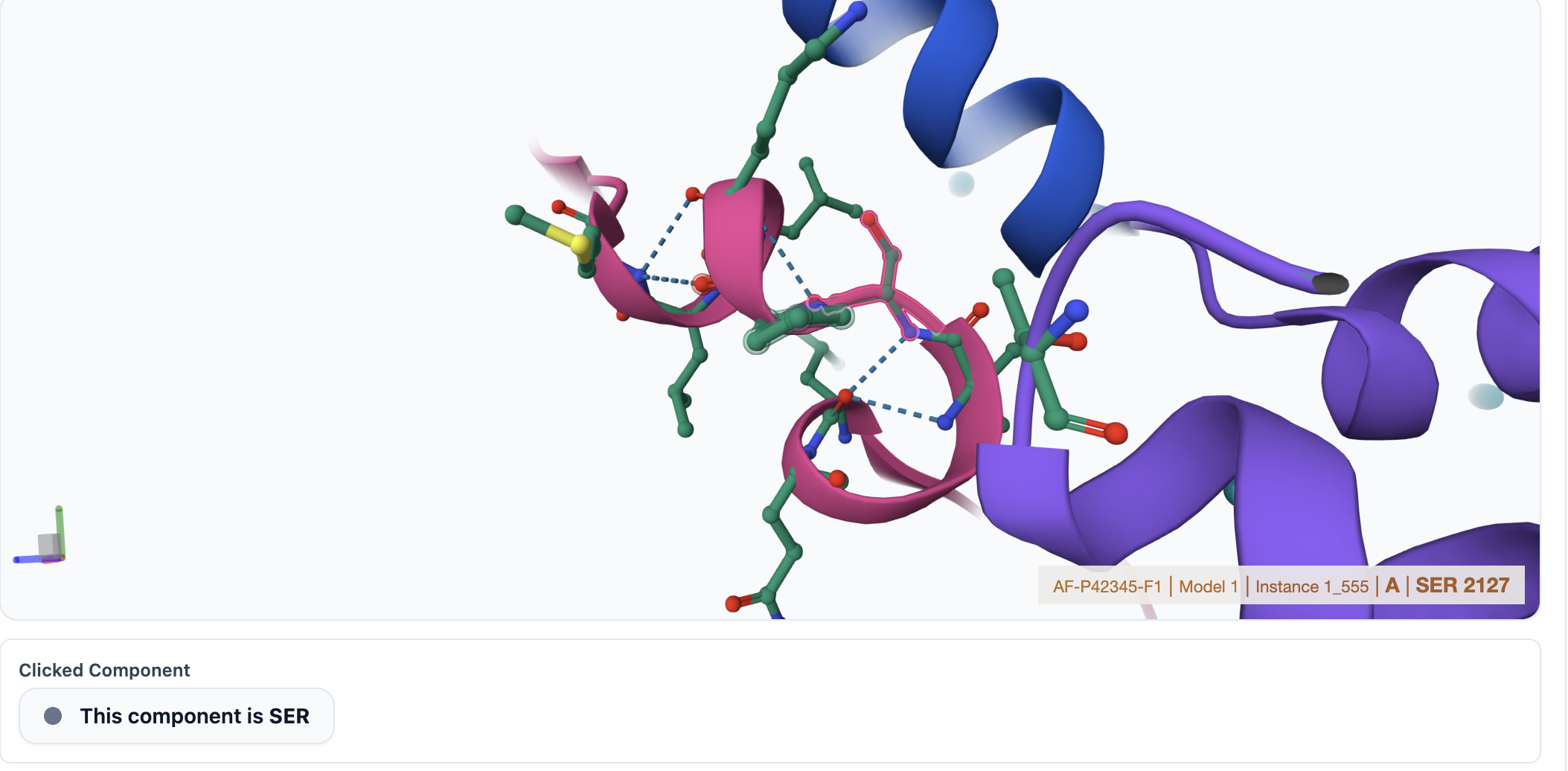
In the Mol* viewer, you can zoom in, zoom out, rotate, click, and hover to inspect specific ligands or residues. Ligands are colored in yellow, ions in cyan, ECOD domains in distinct colors, and the protein backbone in green. You can click on any residue or ligand to view its surrounding residues, bonds, and interactions. If you select a component from the Components in This AlphaFill Model section, it will be highlighted in pink within the viewer. Additionally, you can download the corresponding .pml file for use in PyMOL by clicking the Open File button.
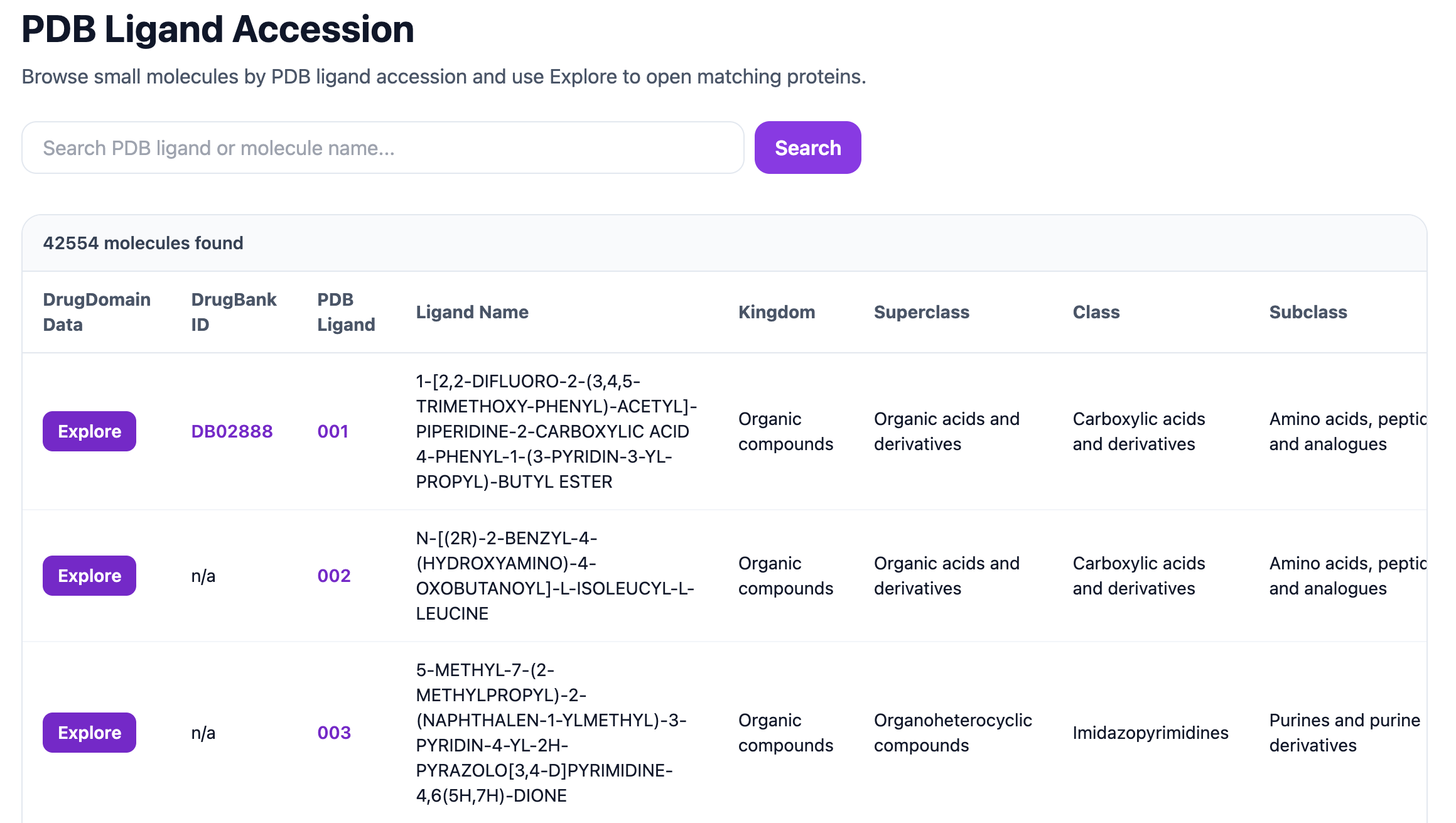
The PDB Accession hierarchy opens a page showing the DrugBank ID, PDB Ligand, Ligand Name, Kingdom, Superclass, Class, and Subclass. The search bar at the top can be used to search by PDB ligand code or molecule name.
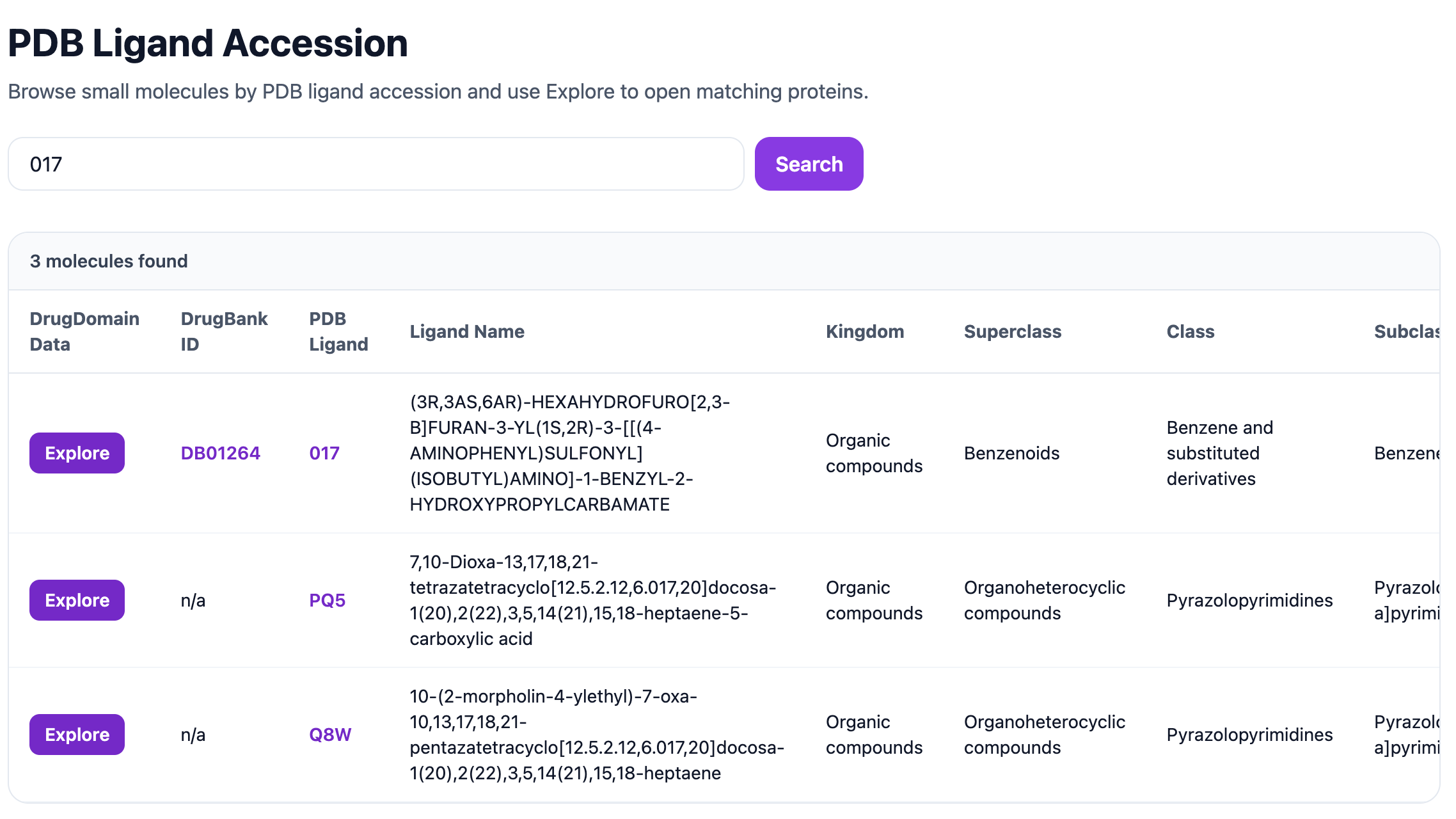
For example, searching for the PDB ligand 017 returns the corresponding ligand entry together with its DrugBank ID, Ligand Name, Kingdom, Superclass, Class, and Subclass information.
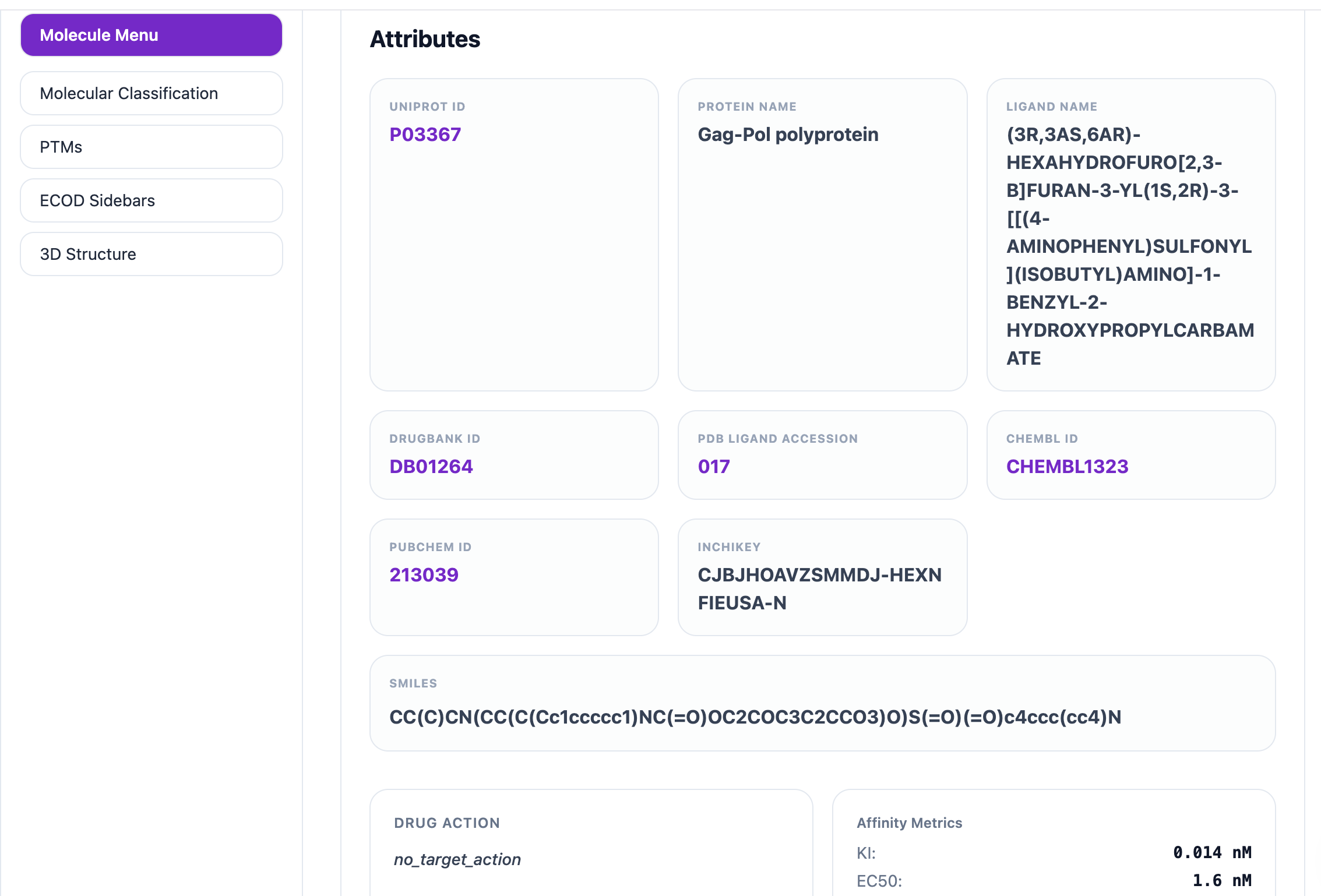
Clicking Explore for ligand 017 opens a page listing all proteins associated with that ligand. This page displays key information, including DrugBank ID, PDB Ligand, UniProt ID, Protein Name, Drug Action, and Affinity Information. The UniProt ID, DrugBank ID, and PDB Ligand entries are clickable and link to their respective external databases. A search bar is also available on this page, allowing you to find specific proteins by UniProt accession or protein name (e.g., P03367).
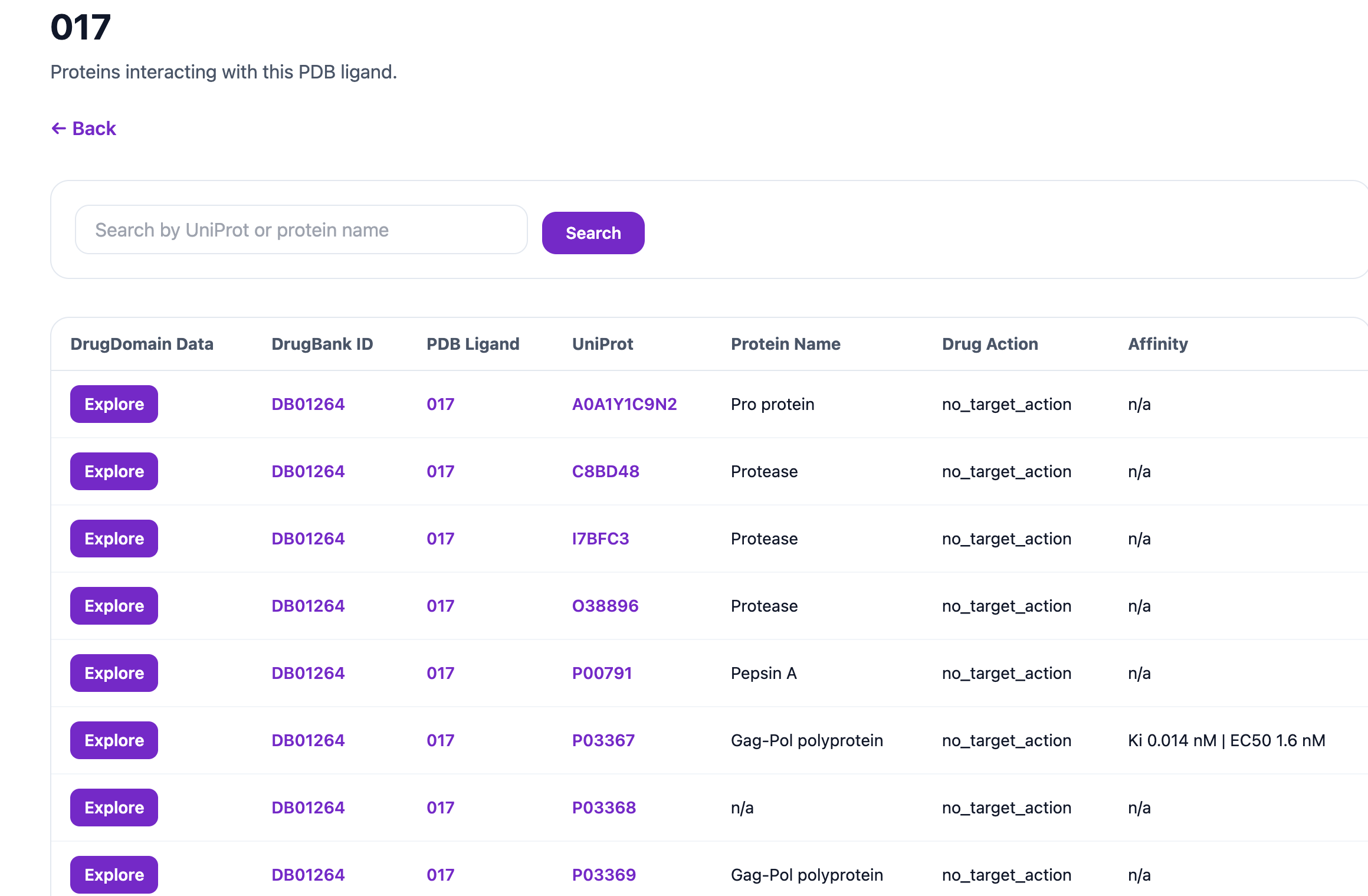
From there, you can again open the Molecular Menu, Molecular Classification, PTMs, ECOD Sidebars, and 3D Structure pages by clicking Explore for a specific protein such as P03367.
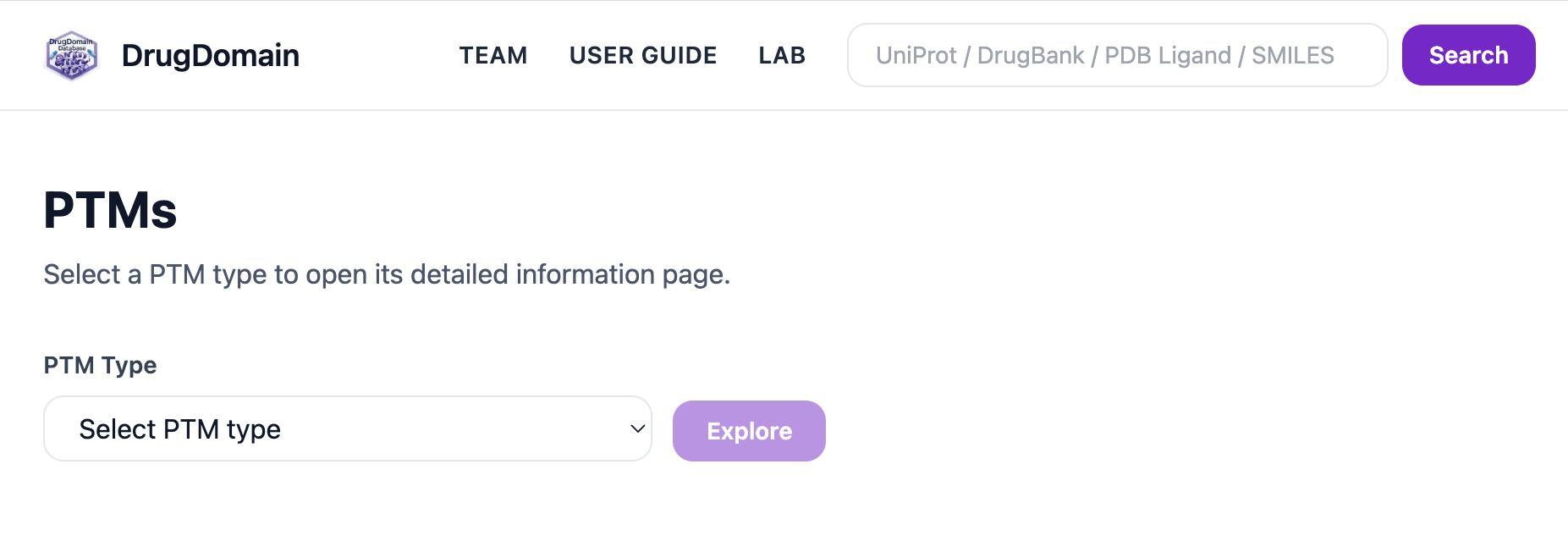
Clicking Explore PTMs opens the PTM module, which includes a dropdown menu for selecting a PTM type.
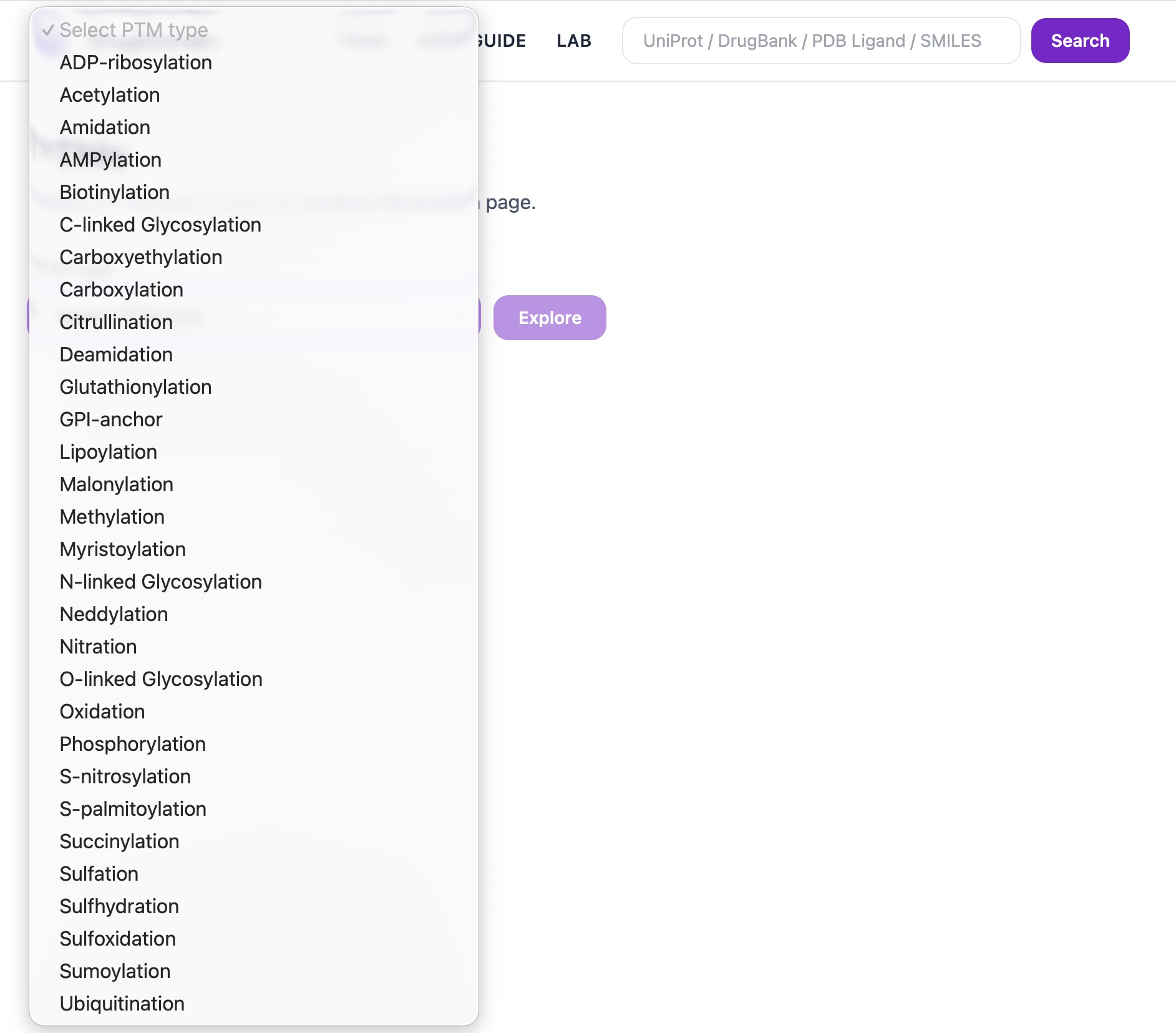
The dropdown lists all available PTM types in the database. Select a PTM type and click Explore to open its result pages.
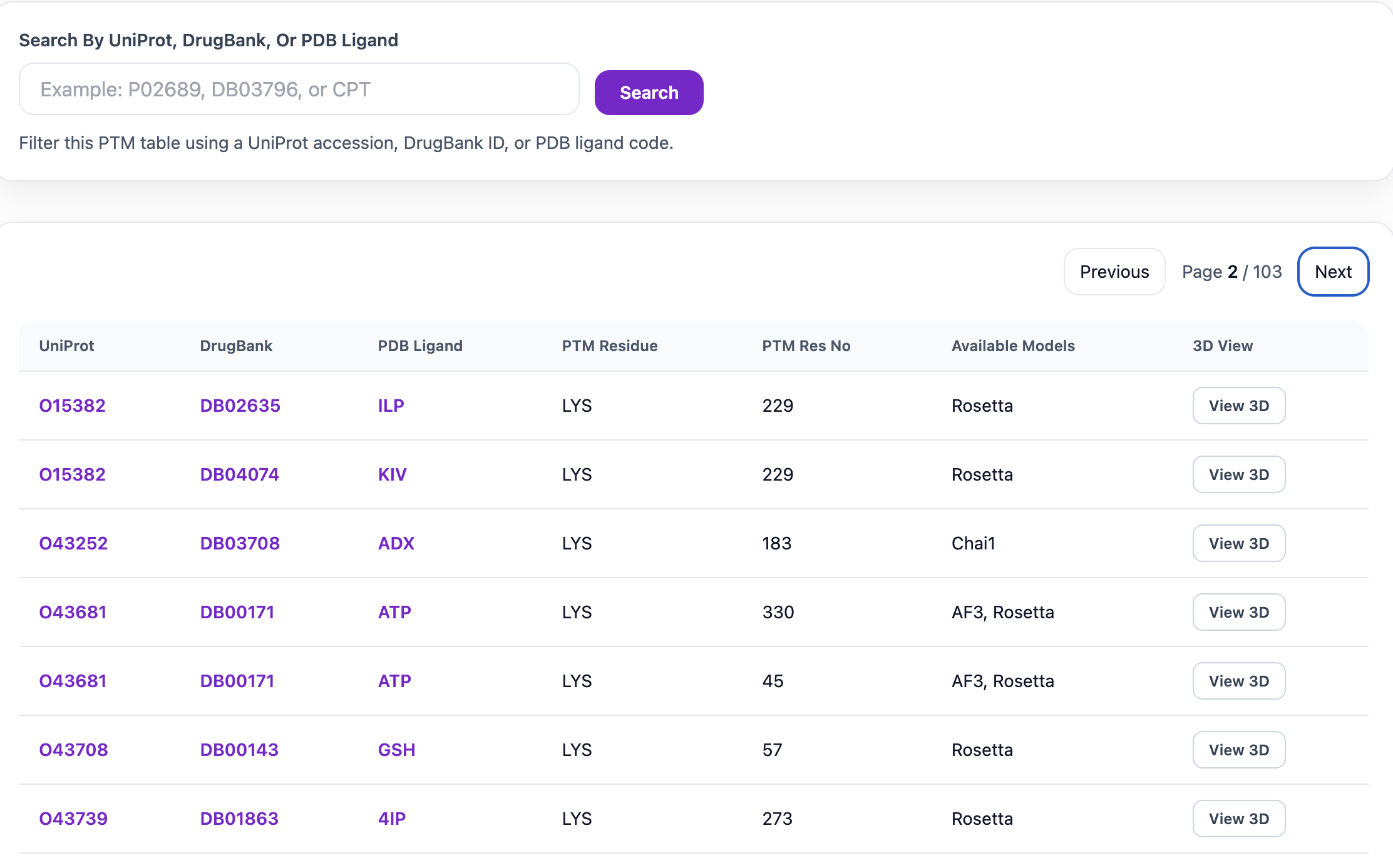
For example, after selecting Acetylation and clicking Explore, a page will open showing the proteins, ligands, and available models associated with that PTM type. The search bar at the top can be used to filter the table by UniProt accession, DrugBank ID, or PDB Ligand. The table includes the UniProt accession, DrugBank ID, PDB Ligand, PTM residue, PTM Residue Number, Available Models, and a 3D View button when a model is available. The UniProt, DrugBank, and PDB Ligand IDs are clickable and link to their respective external databases.
Because a PTM type can include many records, you can navigate through the results using the Next button and switch to a different PTM type from the dropdown menu at any time. When you open a model in 3D, Mol* displays the domain ranges, with domains shown in different colors along with the ligand and the PTM-modified residue. You can also download the .pse file by clicking the Download PSE button and view it in PyMOL.
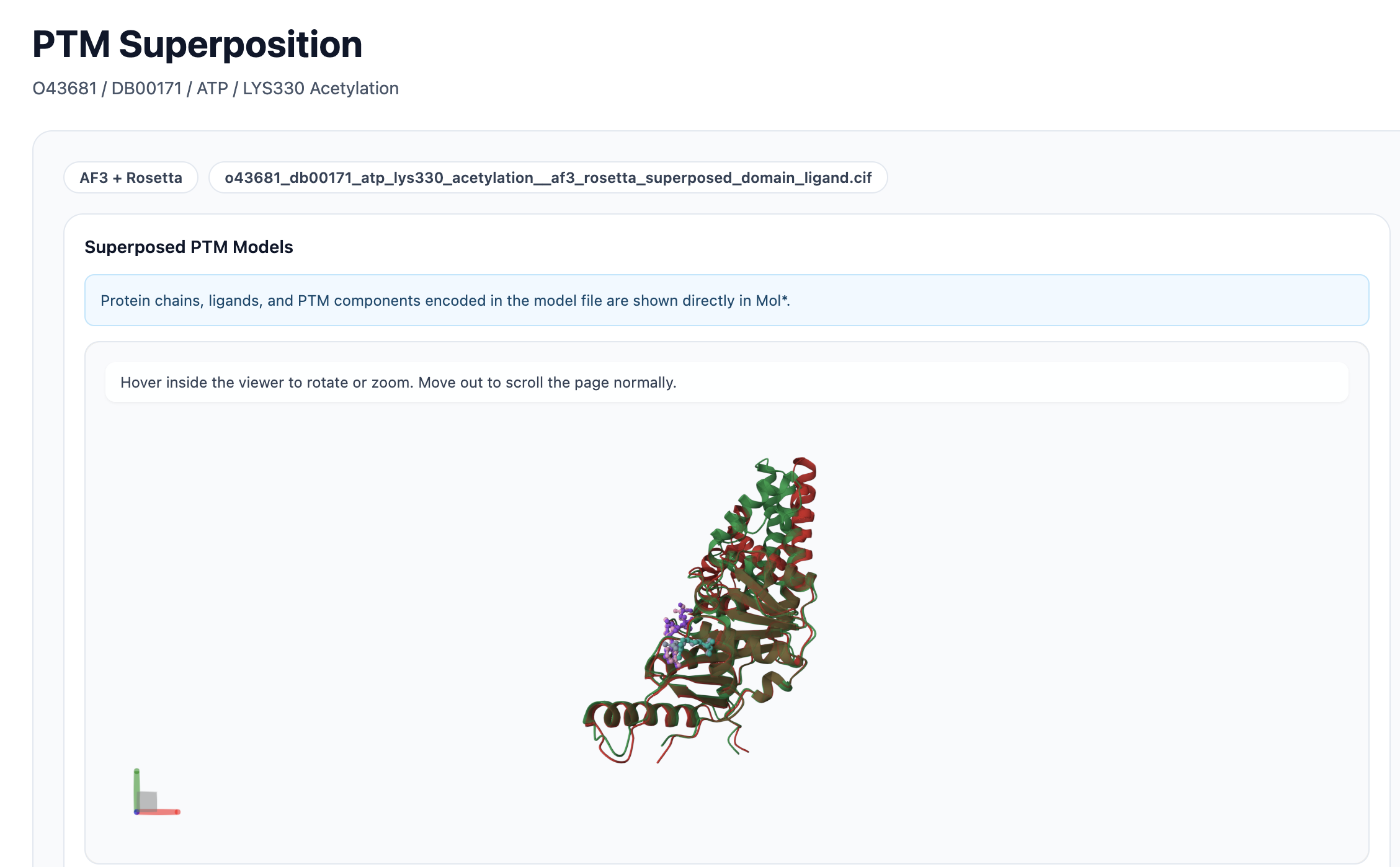
When multiple models are available, a superposition view can be opened in Mol*. In this view, ligands, PTM-modified residues, and domain chains from different models are displayed in distinct colors for easy comparison. You can hover over any PTM, ligand, or residue to see its name and details. Additionally, selecting a component from the Components in This PTM Model section will highlight it in pink within the viewer.